HappyHorse 1.1
HappyHorse 1.1 Free AI Video Generator
Generate lifelike 3–15s 1080p character performances and physics-accurate motion online with HappyHorse 1.1 in Happy Wan from text or a single photo.
What Is HappyHorse 1.1 AI Video Generator?
HappyHorse 1.1 is a high-realism AI video generation model in Happy Wan focused on expressive 3-to-15-second 1080P character performance, subtle facial micro-expressions, and physically grounded motion from text or a single starting image.
By prioritizing natural weight transfer, cloth inertia, and volumetric studio light, HappyHorse 1.1 excels at emotional close-ups, fashion motion showcases, and tactile product cinematography.
HappyHorse 1.1 Core Video Technologies & Key Features
Lifelike Facial Micro-Expressions & Eye Focus
HappyHorse 1.1 offers a text-led scene or animation from one source image. Choose the starting point that communicates your idea most clearly, then describe one action and a camera direction. Keep the focus on a character, object or setting that belongs in your finished story.
- Specify subject & surface materials
- Include wind, water, or gravity cues
- Maintain coherent 3D perspective
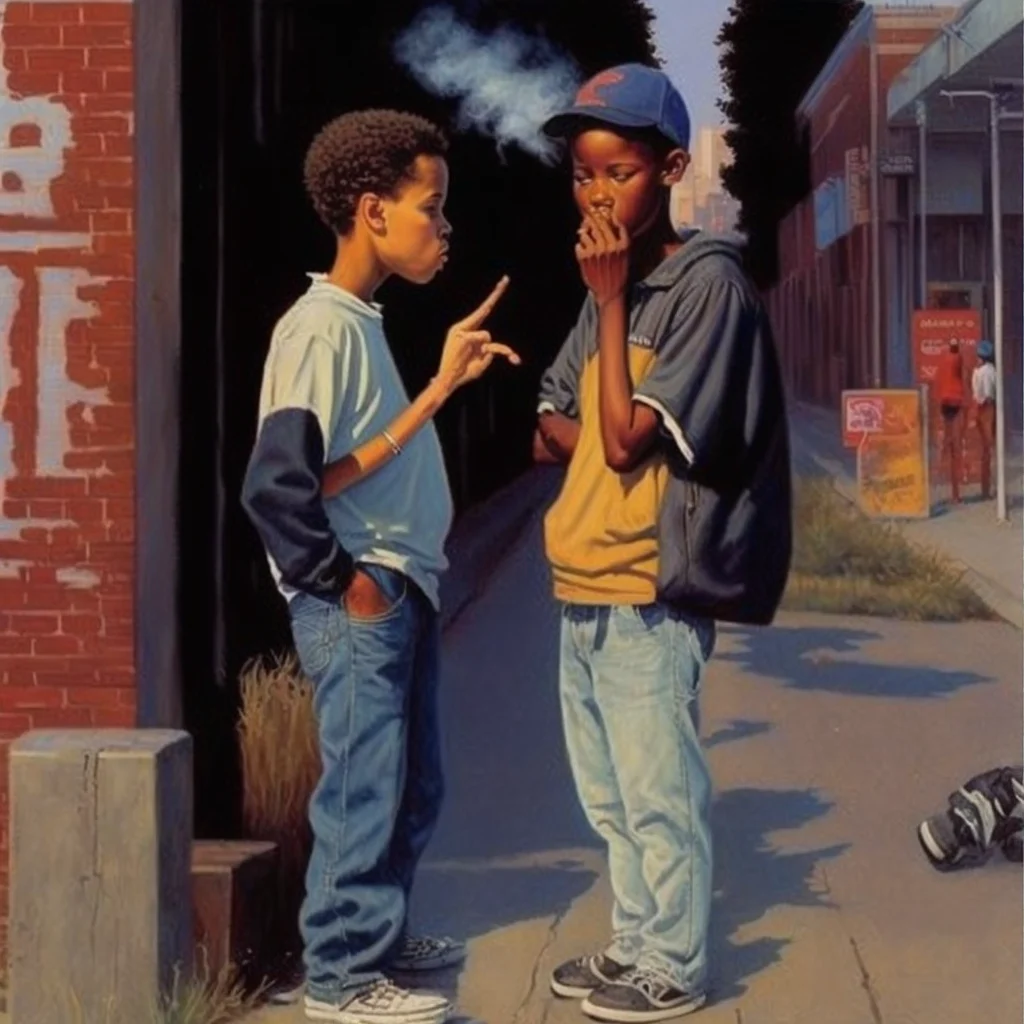
Grounded Physical Motion, Fluid & Cloth Inertia
In text mode, describe the complete scene. In image mode, upload one picture and explain what happens next instead of repeating every visible detail. The source picture supplies the image-mode aspect ratio, so compose it for the destination before uploading.
- Name dolly, orbit, or tracking paths
- Control framing scale & rack focus
- Keep background architecture stable
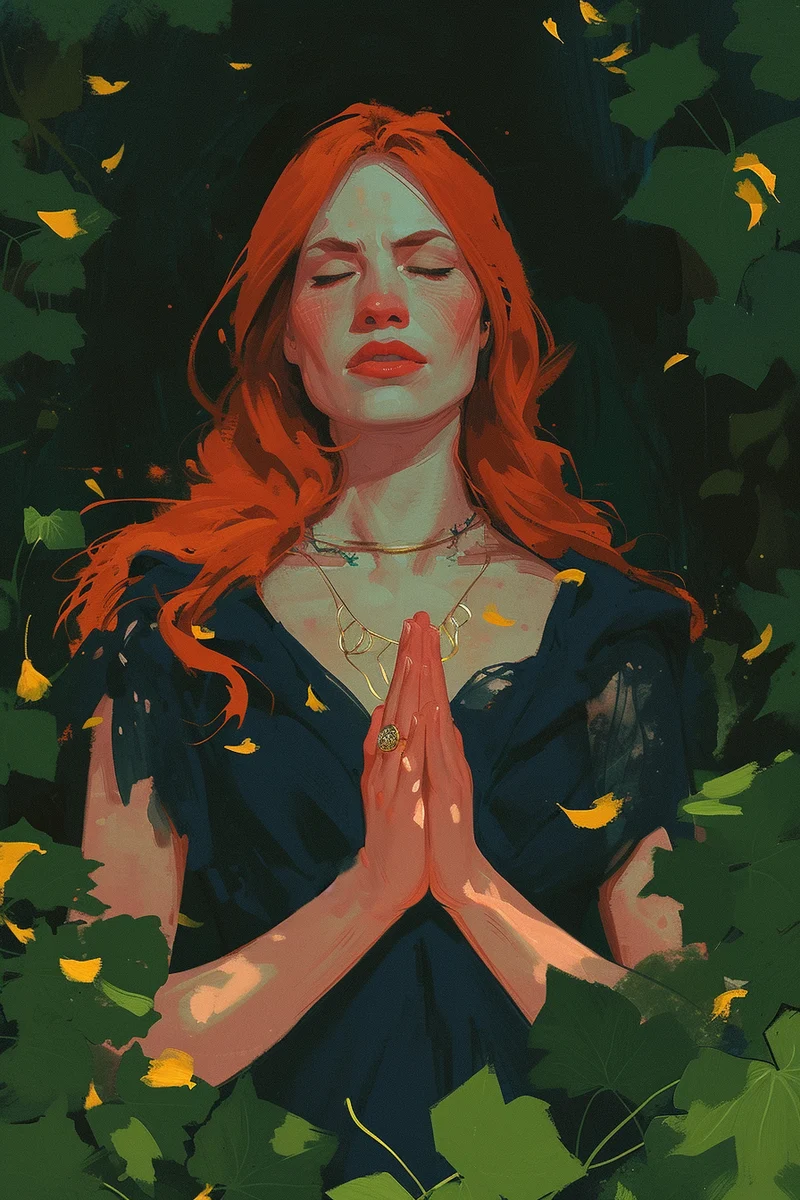
Text-to-Video & Single-Image Animation Precision
HappyHorse 1.1 uses fixed lengths from 3 to 15 seconds and 720P or 1080P output here. Image input accepts one picture. Its controls differ from Wan: this workflow does not expose an audio switch, seed or first-and-last-frame mode.
- Assign clear roles to each reference
- Preserve facial & wardrobe identity
- Match color temperature across cuts
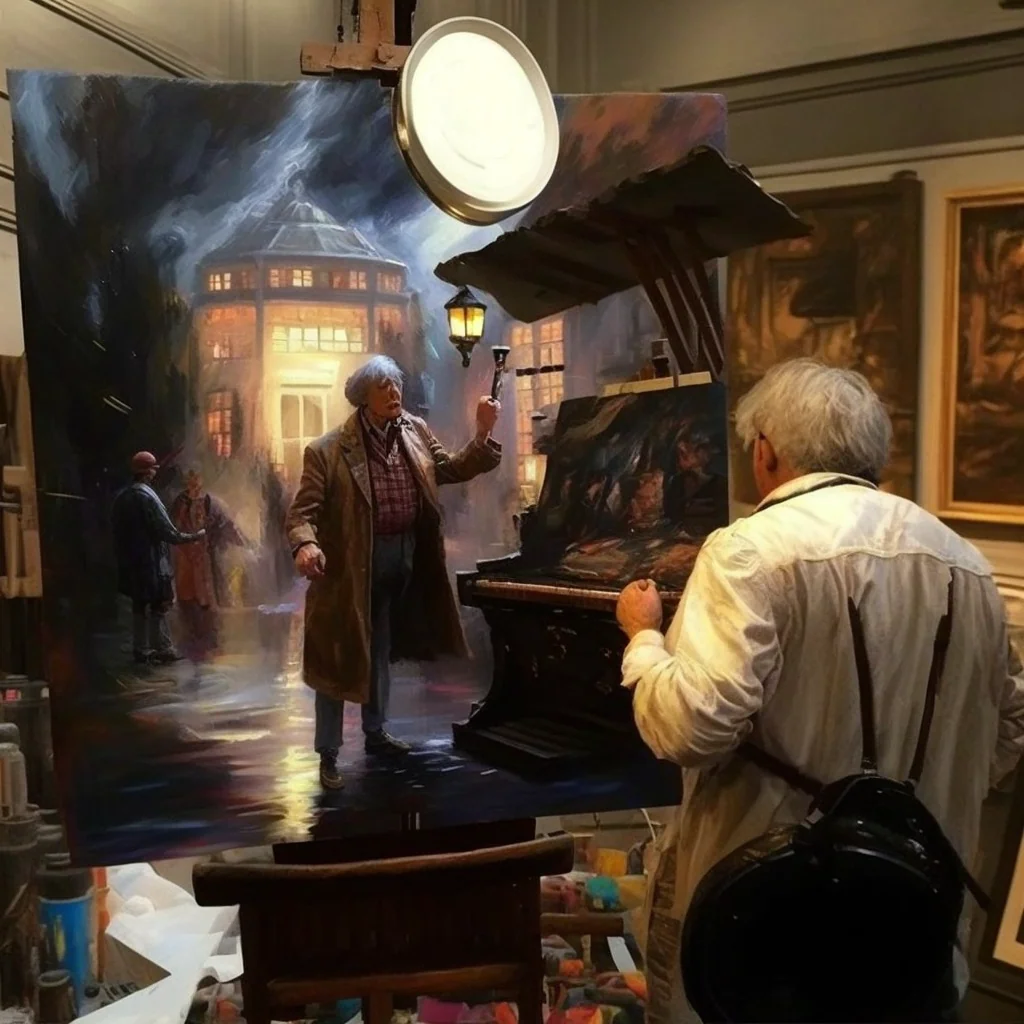
720P & 1080P High-Clarity Visual Output
Start with an illustrated character, a product composition or a landscape and describe a restrained movement. If your idea requires several reference pictures, choose the separately listed HappyHorse 1.1 Reference mode. Keep your shot brief and chosen input together for later revisions.
- Draft fast before 1080P final renders
- Match 16:9, 9:16, or 1:1 channels
- Verify live credit quotes upfront
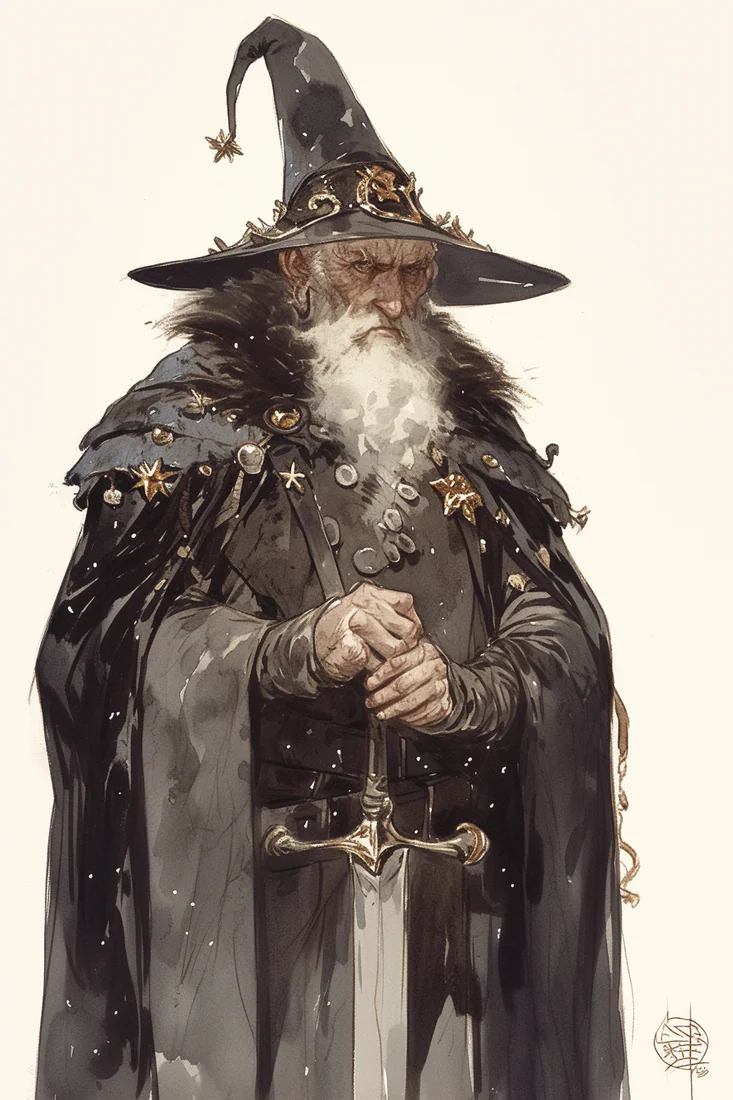
Grounded Physical Pacing & Endpoint Control
Structure each take around a clear opening composition, one continuous physical event, and an intentional resting frame. Validate camera speed, light falloff, and motion inertia on a short draft before rendering 1080P masters for your timeline.
- Lock opening composition & key light
- Direct one continuous physical action
- Plan clean resting frames for editing
How to Use HappyHorse 1.1 Online in Four Steps
Turn your scene description, keyframes, or reference images into a 1080p video clip online with {name}—with transparent upfront credit quotes.
1. Enter Scene Prompt or Reference Media
Describe the subject, physical motion, and camera trajectory, or attach supported reference images and keyframes for this workflow.
2. Select Aspect Ratio, Length & Quality
Pick horizontal (16:9), vertical (9:16), or square (1:1) framing, choose duration and resolution up to 1080P, and set audio preferences.
3. Verify Live Credit Quote & Generate
Review the exact upfront credit cost in the workspace panel before launching cloud generation—protected by automatic refunds on failed tasks.
4. Preview Full Motion & Export HD MP4
Inspect subject continuity, lighting, and pacing from first to final frame in Assets, refine with seed lock if needed, and download.
HappyHorse 1.1 Video Prompt Examples & Shot Showcase
4-Part Director Camera Prompt Template
Subject & Texture: [A protagonist in a tailored dark wool coat] crossing a rain-slicked neon intersection; Physics: wind lifts coat hems while footsteps send ripples across puddles; Camera: slow dolly push-in into a smooth lateral tracking medium shot with shallow depth of field; Lighting & Audio: warm storefront glow against cool wet pavement reflections, crisp rain and footsteps.
Reference framing
Subject & Texture: A protagonist in a tailored dark wool coat crossing a rain-slicked neon intersection; Physics: wind lifts coat hems while footsteps send ripples across puddles; Camera: slow dolly push-in into a smooth lateral tracking medium shot with shallow depth of field; Lighting & Audio: warm storefront glow against cool wet pavement reflections, crisp rain and footsteps.
HappyHorse 1.1 Specifications & Workflow Comparison
Compare supported inputs, clip durations, resolutions, and audio controls across all four studio video workflows in Happy Wan.
| Setting | HappyHorse 1.1This model | Wan 3.0 | Wan 3.0 Prime | HappyHorse 1.1 Reference |
|---|---|---|---|---|
| Starting point | Text or image | Text or image | Text or image | Images |
| Duration | 3–15 s | 2–30 s | 2–30 s | 3–15 s |
| Resolution | 720P · 1080P | 480P · 720P · 1080P | 480P · 720P · 1080P | 720P · 1080P |
| Image references | One image | Up to 10 images, or first / last frames | Up to 10 images, or first / last frames | Up to 9 images |
| Sound control | No audio switch | Optional audio | Optional audio | No audio switch |
| Recommended draft length | 5 s | 5 s | 5 s | 5 s |
| Supported image formats | JPG · PNG · WebP | JPG · PNG · WebP | JPG · PNG · WebP | JPG · PNG · WebP |
Commercial Value & Industry Use Cases of HappyHorse 1.1
Brand Commercials & Product Hero Clips
Showcase luxury materials, glass refraction, cosmetics textures, and dynamic product reveals in 1080P without booking physical studio stages.
AI Short Dramas & Character Storytelling
Maintain consistent facial identity, wardrobe styling, and emotional performance across dialogue close-ups and multi-angle narrative cuts.
Film Pre-Visualization & Storyboard Animatics
Translate written screenplay beats into structured dolly, tracking, and crane camera takes to validate pacing before full production.
High-Retention Social Reels & Ad Variations
Deliver native 9:16 vertical hooks, 1:1 e-commerce loops, and 16:9 campaign masters rapidly from a single browser-based studio.
HappyHorse 1.1 Frequently Asked Questions (FAQ)
Does HappyHorse 1.1 use text or images?
Choose text mode to describe a complete scene, or image mode to start from one picture. The single image supplies the initial composition; explain the action that should follow.This model accepts one image in image mode. If the scene needs several separate pictures to guide appearance or setting, open HappyHorse 1.1 Reference instead.
What duration and resolution can I select?
HappyHorse 1.1 offers fixed lengths from 3 to 15 seconds and 720P or 1080P in this workspace. Match the amount of action to the selected length.It does not offer Wan’s 480P option or 2–30-second range. If those controls matter to the shot, compare Wan 3.0 and check its quote before switching.
How is the video’s frame ratio determined?
In image mode, the result follows the source image’s proportions. Compose or crop the image for its destination before uploading, with the subject and important details inside the frame.In text mode, use a supported ratio offered by the workspace. Recheck the input mode when switching between a written scene and an image-led shot.
Where is the audio switch?
This HappyHorse 1.1 workflow does not expose an audio switch. Keep the prompt focused on the visible scene and use the controls offered for this model.If the request needs a selectable audio setting, inspect Wan 3.0 or Prime. Listen to any returned clip and prepare the final sound separately in your editor.
Can I add a last frame or a seed?
This workspace provides a single-image starting point rather than first-and-last-frame mode, and it does not expose a seed control for HappyHorse 1.1. Describe the desired progression in the prompt.If an ending image is essential to planning the shot, use a Wan frames workflow. Check that the new duration, resolution and quote still match your project.
How do I prompt an image-led HappyHorse shot?
Explain what happens after the source image: the subject looks up, a curtain moves or the camera slowly approaches. Use one main action and a clear pace.The image already supplies visible appearance, so spend the prompt on movement and relevant continuity. Conflicting instructions can make the intended shot harder to communicate.
When should I use Reference or Wan instead?
Choose HappyHorse 1.1 Reference when different pictures need to guide the same scene; it accepts up to nine images and offers a supported output-ratio selection.Choose Wan or Prime when the plan needs their longer duration range, 480P, selectable audio or endpoint frames. Review the controls and quote again after switching.
How should I prepare the single image?
Start with a clear subject, useful detail and a crop that suits the final format. Allow space around the subject for the intended motion and camera movement.If the composition needs work, prepare it in the image workspace first. Check fine details and edges before uploading because the source ratio carries into image-mode video.
Where can I check credits and task status?
Choose HappyHorse 1.1, set the supported duration and resolution, then read the current credit quote before submitting. A quote from another model does not apply automatically.Open the original task in Assets if the result is pending or fails. Read the available status and message, and keep the task ID when asking for help before creating another task.
What should I review before using the clip?
Watch from the source-like opening through the final frame. Check that the subject remains recognisable and that the action, camera movement and crop fit the intended scene.Review faces, hands, text and product details, plus any sound in the returned file. Confirm the rights to your materials and complete the final edit before publishing.
Start Creating Online with HappyHorse 1.1 Today
Open the {name} studio workspace, claim your 50 free welcome credits on first sign-in, and direct your next 1080p shot.
Start Creating Free