HappyHorse 1.1 Reference
HappyHorse 1.1 Reference AI Video Generator
Keep characters, outfits and products consistent across shots online with HappyHorse 1.1 Reference in Happy Wan using up to 9 multi-angle reference images.
What Is HappyHorse 1.1 Reference AI Video Generator?
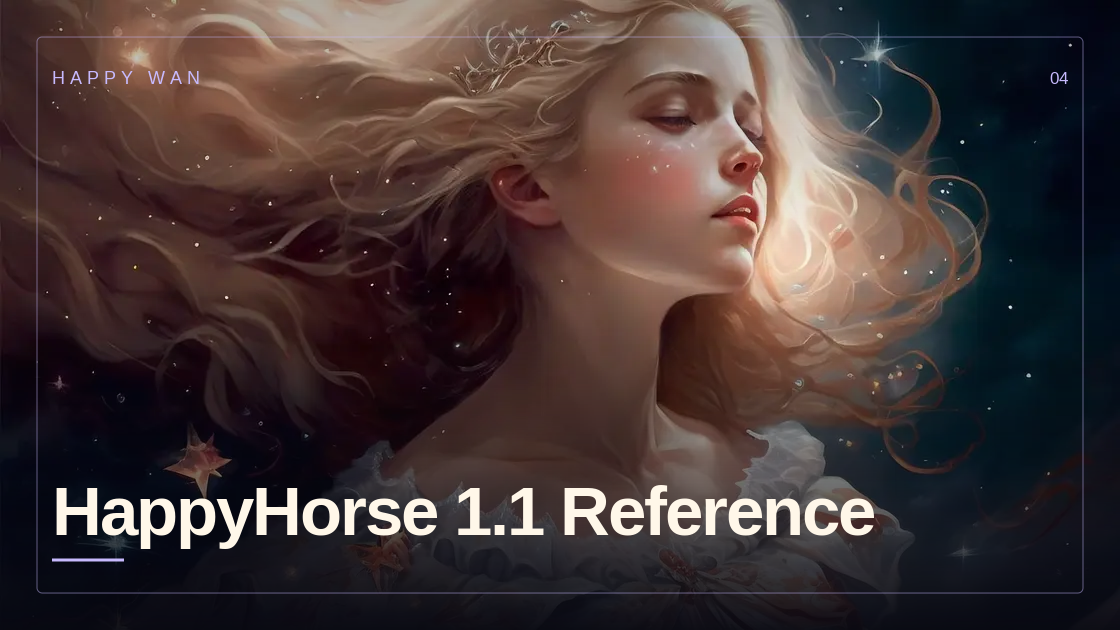
HappyHorse 1.1 Reference is the dedicated multi-reference consistency video model in Happy Wan, allowing creators to lock character faces, outfits, props, and environment styling across 3-to-15-second 1080P shots using up to 9 reference images.
Built for episodic AI short dramas, multi-scene e-commerce lookbooks, and recurring brand mascots, it preserves unmistakable visual identity even as camera angles and lighting change.
HappyHorse 1.1 Reference Core Video Technologies & Key Features
Up to 9 Reference Images with Distinct Visual Roles
HappyHorse 1.1 Reference starts with images that help define your subject and visual direction. Gather the references that matter, explain what each contributes, and describe one coherent action. Build a character, campaign or imagined world around a clear relationship between pictures and words.
- Specify subject & surface materials
- Include wind, water, or gravity cues
- Maintain coherent 3D perspective
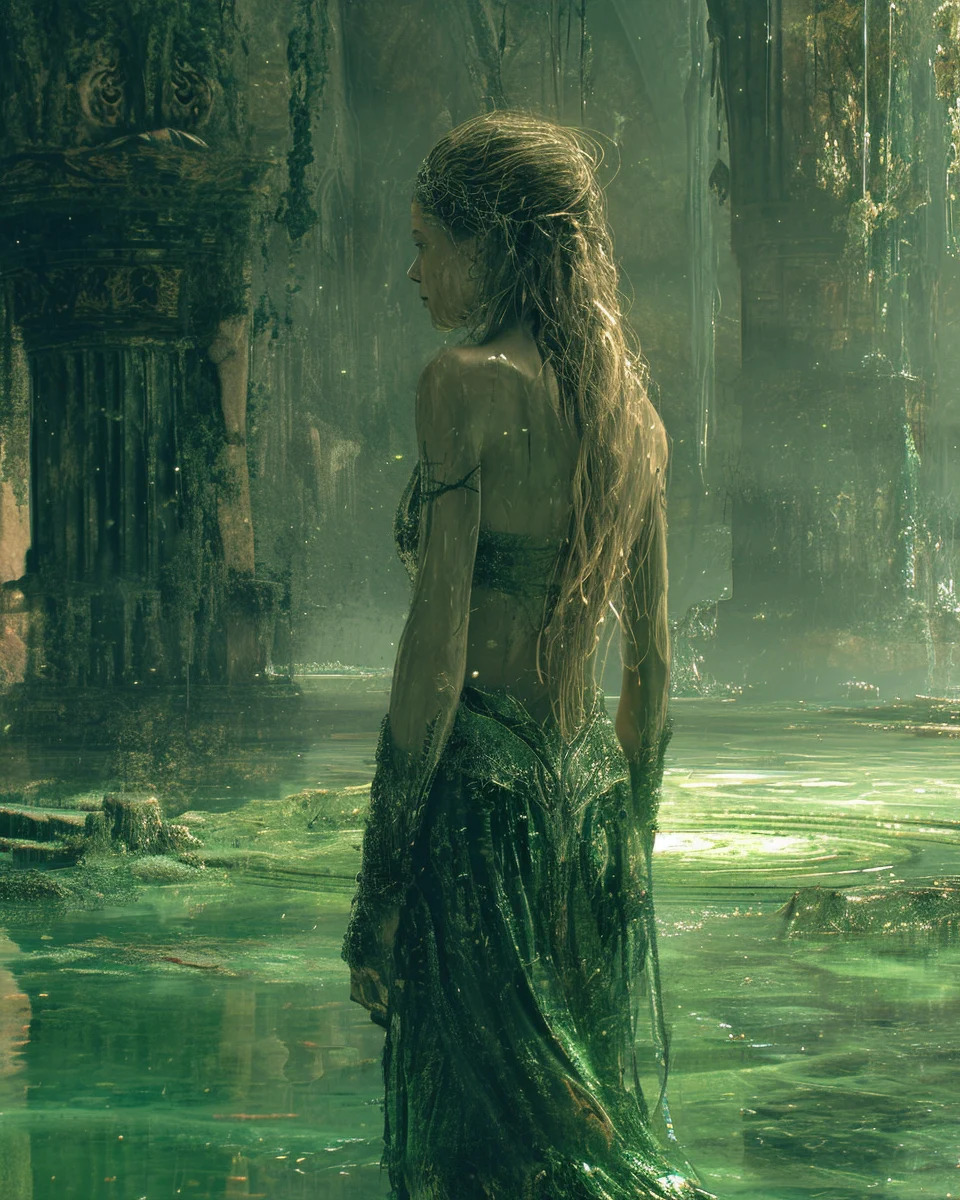
Cross-Angle Character, Wardrobe & Product Locking
This is the reference-image workflow, separate from the single-image HappyHorse choice. Upload the pictures you need and describe the subject, setting or appearance each should guide. Avoid conflicting identities and unrelated compositions that make the intended scene difficult to interpret.
- Name dolly, orbit, or tracking paths
- Control framing scale & rack focus
- Keep background architecture stable
Natural Human Movement & Volumetric Studio Light
HappyHorse 1.1 Reference accepts up to nine images, with fixed lengths from 3 to 15 seconds and 720P or 1080P output here. Choose a supported frame ratio for the result. This workspace accepts image references rather than video or audio references.
- Assign clear roles to each reference
- Preserve facial & wardrobe identity
- Match color temperature across cuts
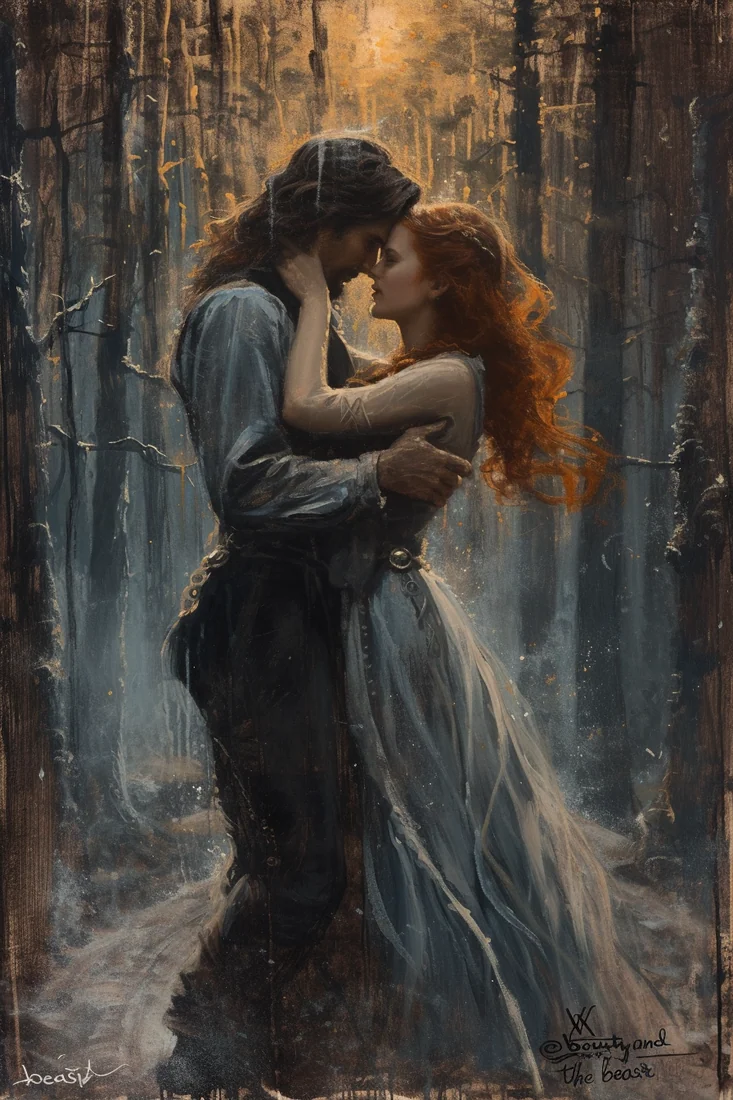
Multi-Aspect Framing for Series & E-Commerce Ads
Use a small, purposeful set before adding more images. A character view, clothing detail and location can guide different parts of the same shot. Check the result for consistency throughout the clip; references guide a creative result and do not guarantee exact reproduction.
- Draft fast before 1080P final renders
- Match 16:9, 9:16, or 1:1 channels
- Verify live credit quotes upfront
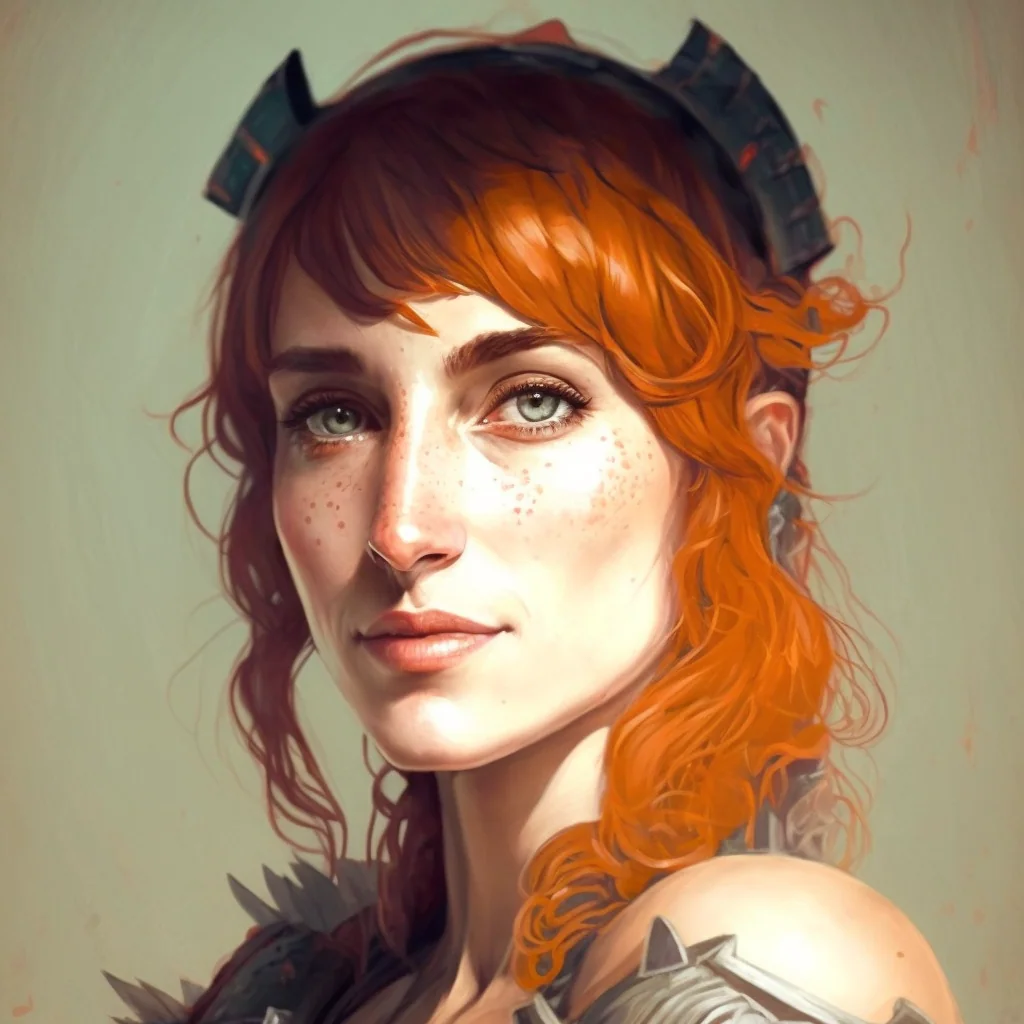
Grounded Physical Pacing & Endpoint Control
Structure each take around a clear opening composition, one continuous physical event, and an intentional resting frame. Validate camera speed, light falloff, and motion inertia on a short draft before rendering 1080P masters for your timeline.
- Lock opening composition & key light
- Direct one continuous physical action
- Plan clean resting frames for editing
How to Use HappyHorse 1.1 Reference Online in Four Steps
Turn your scene description, keyframes, or reference images into a 1080p video clip online with {name}—with transparent upfront credit quotes.
1. Enter Scene Prompt or Reference Media
Describe the subject, physical motion, and camera trajectory, or attach supported reference images and keyframes for this workflow.
2. Select Aspect Ratio, Length & Quality
Pick horizontal (16:9), vertical (9:16), or square (1:1) framing, choose duration and resolution up to 1080P, and set audio preferences.
3. Verify Live Credit Quote & Generate
Review the exact upfront credit cost in the workspace panel before launching cloud generation—protected by automatic refunds on failed tasks.
4. Preview Full Motion & Export HD MP4
Inspect subject continuity, lighting, and pacing from first to final frame in Assets, refine with seed lock if needed, and download.
HappyHorse 1.1 Reference Video Prompt Examples & Shot Showcase
4-Part Director Camera Prompt Template
Subject & Texture: [A protagonist in a tailored dark wool coat] crossing a rain-slicked neon intersection; Physics: wind lifts coat hems while footsteps send ripples across puddles; Camera: slow dolly push-in into a smooth lateral tracking medium shot with shallow depth of field; Lighting & Audio: warm storefront glow against cool wet pavement reflections, crisp rain and footsteps.
Multi-Reference Character & Product Lock Template
Reference Lock: Use [Reference Image 1] for facial identity, hairstyle, and wardrobe silhouette, and [Reference Image 2] for the faceted glass perfume bottle and brushed gold cap; Camera & Light: gentle 180° orbital arc from front medium shot to rim-lit close-up while preserving subject and product fidelity.
HappyHorse 1.1 Reference Specifications & Workflow Comparison
Compare supported inputs, clip durations, resolutions, and audio controls across all four studio video workflows in Happy Wan.
| Setting | HappyHorse 1.1 ReferenceThis model | Wan 3.0 | Wan 3.0 Prime | HappyHorse 1.1 |
|---|---|---|---|---|
| Starting point | Images | Text or image | Text or image | Text or image |
| Duration | 3–15 s | 2–30 s | 2–30 s | 3–15 s |
| Resolution | 720P · 1080P | 480P · 720P · 1080P | 480P · 720P · 1080P | 720P · 1080P |
| Image references | Up to 9 images | Up to 10 images, or first / last frames | Up to 10 images, or first / last frames | One image |
| Sound control | No audio switch | Optional audio | Optional audio | No audio switch |
| Recommended draft length | 5 s | 5 s | 5 s | 5 s |
| Supported image formats | JPG · PNG · WebP | JPG · PNG · WebP | JPG · PNG · WebP | JPG · PNG · WebP |
Commercial Value & Industry Use Cases of HappyHorse 1.1 Reference
Brand Commercials & Product Hero Clips
Showcase luxury materials, glass refraction, cosmetics textures, and dynamic product reveals in 1080P without booking physical studio stages.
AI Short Dramas & Character Storytelling
Maintain consistent facial identity, wardrobe styling, and emotional performance across dialogue close-ups and multi-angle narrative cuts.
Film Pre-Visualization & Storyboard Animatics
Translate written screenplay beats into structured dolly, tracking, and crane camera takes to validate pacing before full production.
High-Retention Social Reels & Ad Variations
Deliver native 9:16 vertical hooks, 1:1 e-commerce loops, and 16:9 campaign masters rapidly from a single browser-based studio.
HappyHorse 1.1 Reference Frequently Asked Questions (FAQ)
How many references can I add?
HappyHorse 1.1 Reference accepts up to nine images. Begin with a small set and give each image a clear role, such as the person, clothing or location.This is an image-reference workflow. Video and audio references are outside it; remove irrelevant or conflicting pictures before describing one coherent scene.
Which lengths and resolutions are supported?
Choose a fixed duration from 3 to 15 seconds and 720P or 1080P. Keep the brief focused enough for the action to read within the selected time.The Reference model does not offer Wan’s 480P or 2–30-second range. If those settings are essential, inspect a Wan workflow and review its input requirements and quote.
Can I choose the output frame ratio?
Yes. Select a supported output ratio in the Reference workspace and plan the composition for that destination. Explain where the subject and important background elements should sit.Unlike single-image HappyHorse, the result’s ratio is a selectable setting here. Check that your reference images communicate a compatible composition instead of relying on the first picture alone.
Does Reference have audio or seed controls?
This Reference workflow exposes neither an audio switch nor a seed control. Use the available image, duration, resolution and ratio settings to describe the shot.For selectable audio, consider Wan 3.0 or Prime and check how your references fit their input modes. Review any returned sound and complete the final mix during editing.
Can I set a first and last frame?
Reference images guide the scene; this model does not offer a first-and-last-frame mode. Describe each image’s role rather than treating the upload order as a sequence of required frames.If you need a specified opening and optional ending image, inspect Wan’s frames mode. Prepare compatible endpoints and check the new quote before submitting there.
How do I write a multi-reference prompt?
Identify which reference supplies the subject, which supplies clothing or appearance, and which supplies the location. Then describe a single action and camera movement connecting the scene.Resolve conflicts before creating: two different identities or unrelated settings can obscure the intention. Add a reference only when it contributes something the existing set does not explain.
When is another model a better fit?
Use single-image HappyHorse 1.1 when one prepared composition already describes the scene and you want movement from that starting point. Its image-mode ratio follows that source image.Use Wan or Prime when the plan depends on endpoint frames, optional audio, 480P or a different duration range. Compare supported inputs and the current quote before switching.
How should I prepare the reference set?
Choose clear, relevant pictures and identify what must remain recognisable in each. Crop away distracting content and avoid contradictory costumes or incompatible views unless you explain their purpose.Prepare missing character or location images in the image workspace first. Review the complete set together, then use only the pictures needed to communicate one shot.
How do I check the quote or a failed reference task?
Set the Reference model, supported length, resolution and ratio, then review the current credit quote. Check all attachments before submitting the task.If it is pending or fails, inspect its original record in Assets and read the available message. Keep the task ID and check that record before submitting a replacement.
How can I judge reference consistency before publishing?
Watch the entire clip and compare the subject, clothing and setting with their intended roles. References provide direction; check the actual result rather than assuming exact reproduction.Inspect motion, faces, text, product detail and the final frame. Confirm permissions for the materials and finish cropping, sound and editing for the publishing channel.
Start Creating Online with HappyHorse 1.1 Reference Today
Open the {name} studio workspace, claim your 50 free welcome credits on first sign-in, and direct your next 1080p shot.
Start Creating Free