
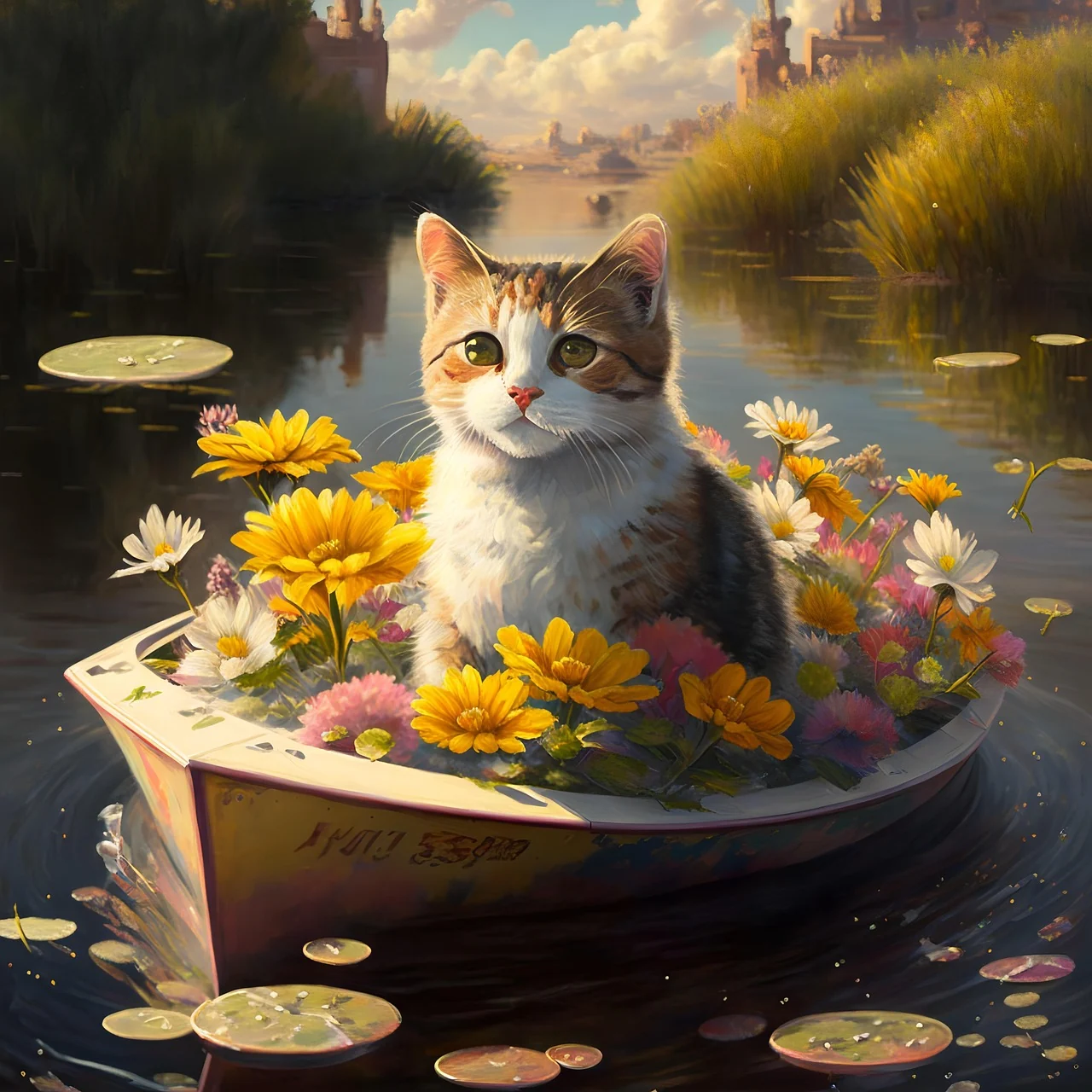
 View prompt
a cat in a small boat among flowers on a river
a cat in a small boat among flowers on a river. One continuous scene. Keep a clear focal subject, describe one visible action and use restrained camera movement.
Claim 50 free credits · Check in for up to 100 weekly
Wan 3.0 Prime is the separate Prime selection for text and image video creation.
Open a scene to inspect its image and prompt, then adapt the subject and movement to your own shot.
View prompta cat in a small boat among flowers on a river. One continuous scene. Keep a clear focal subject, describe one visible action and use restrained camera movement.
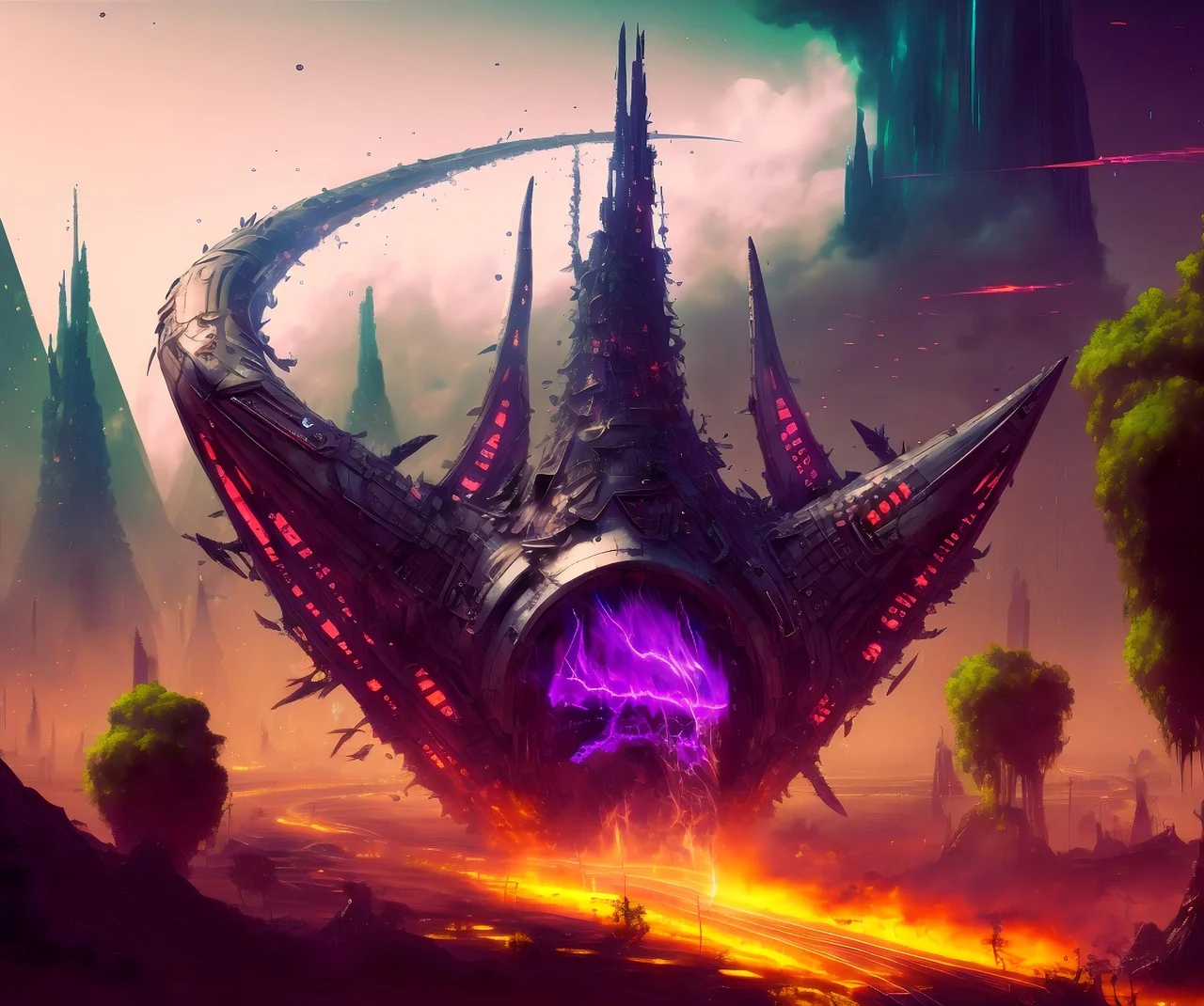 View prompt
an immense alien spacecraft with a purple energy core. One continuous scene. Keep a clear focal subject, describe one visible action and use restrained camera movement.
 View prompt
a triangular spacecraft above misty mountains. One continuous scene. Keep a clear focal subject, describe one visible action and use restrained camera movement.
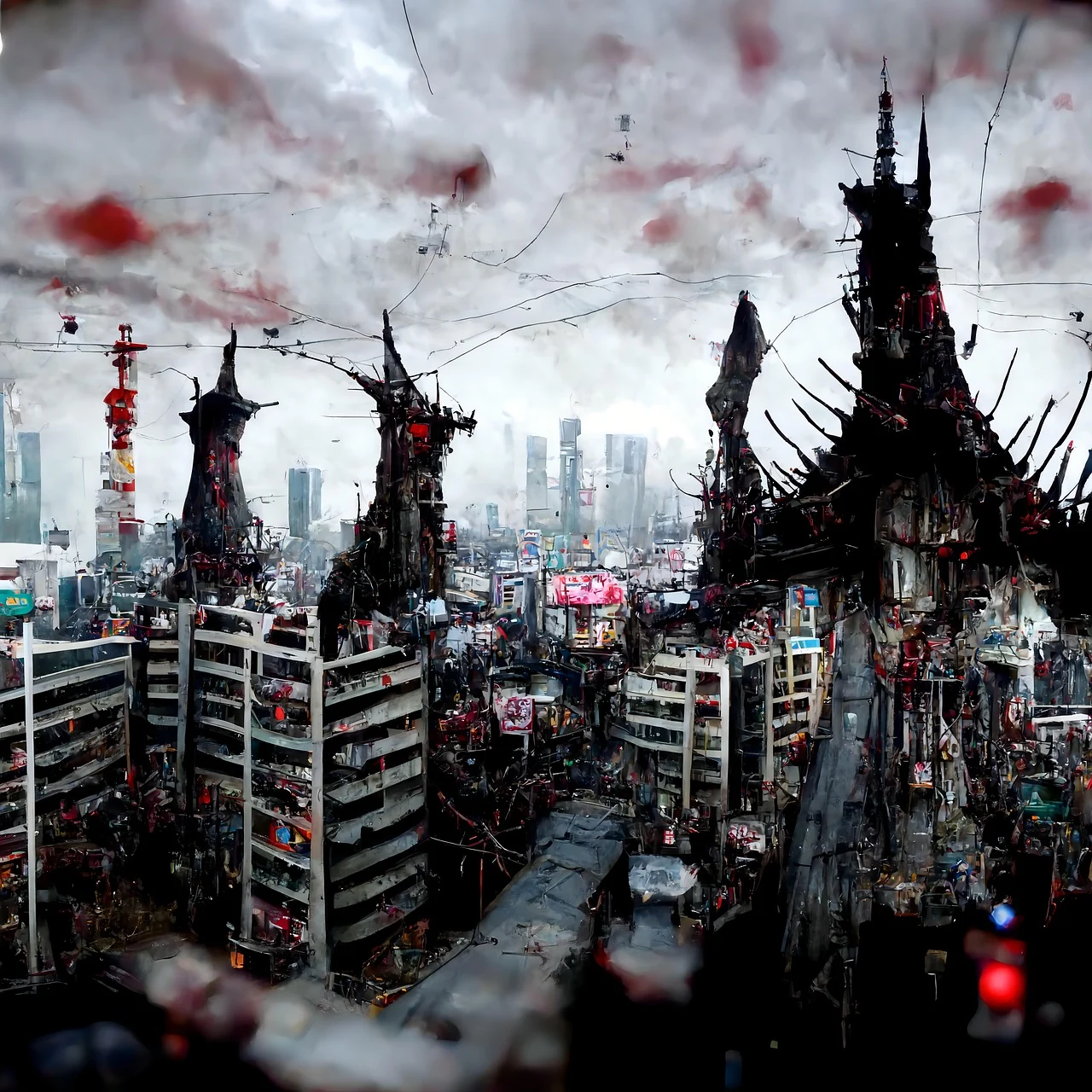 View prompt
fantasy city towers under a red-gray sky. One continuous scene. Keep a clear focal subject, describe one visible action and use restrained camera movement.
 View prompt
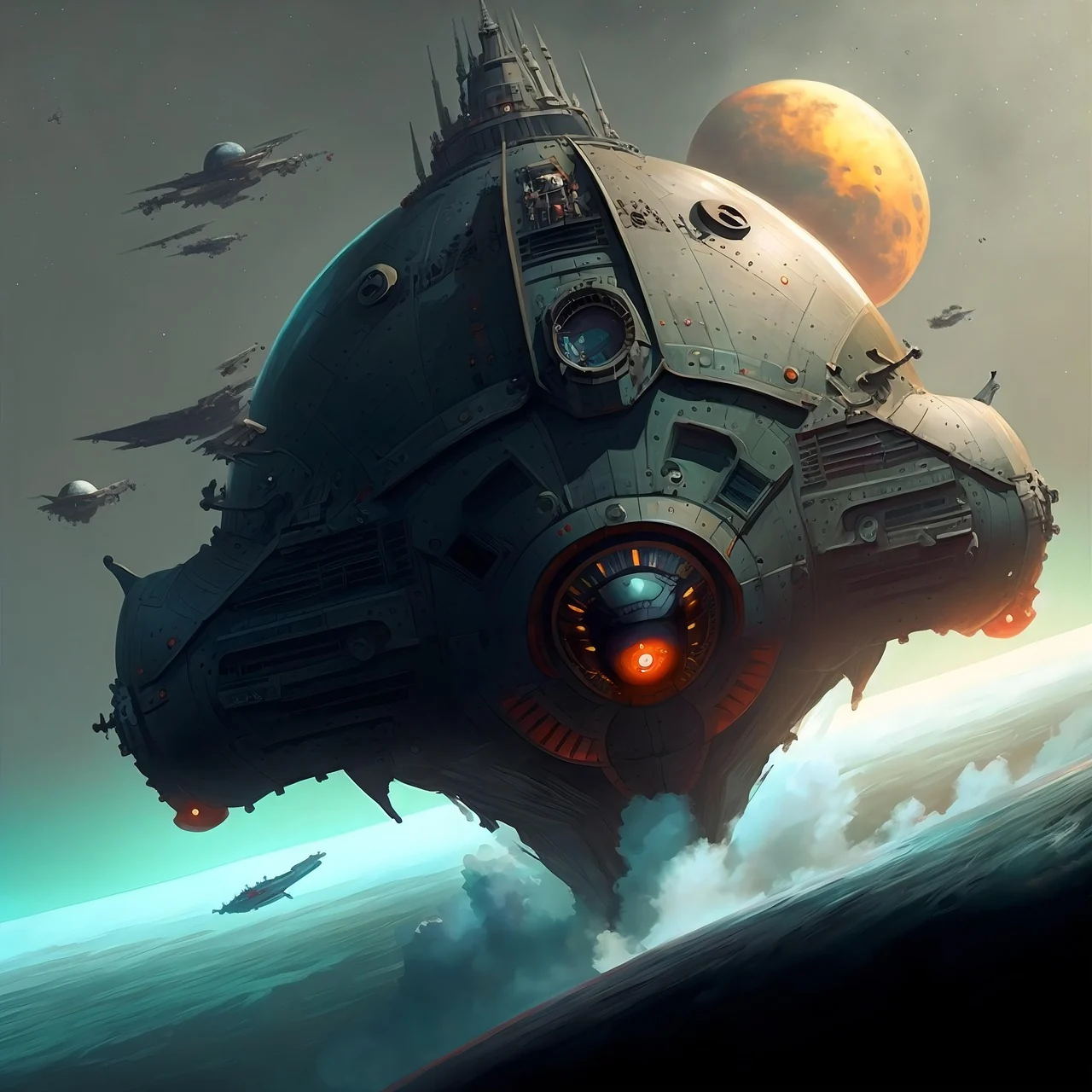
a futuristic spacecraft above an alien ocean. One continuous scene. Keep a clear focal subject, describe one visible action and use restrained camera movement.
 View prompt
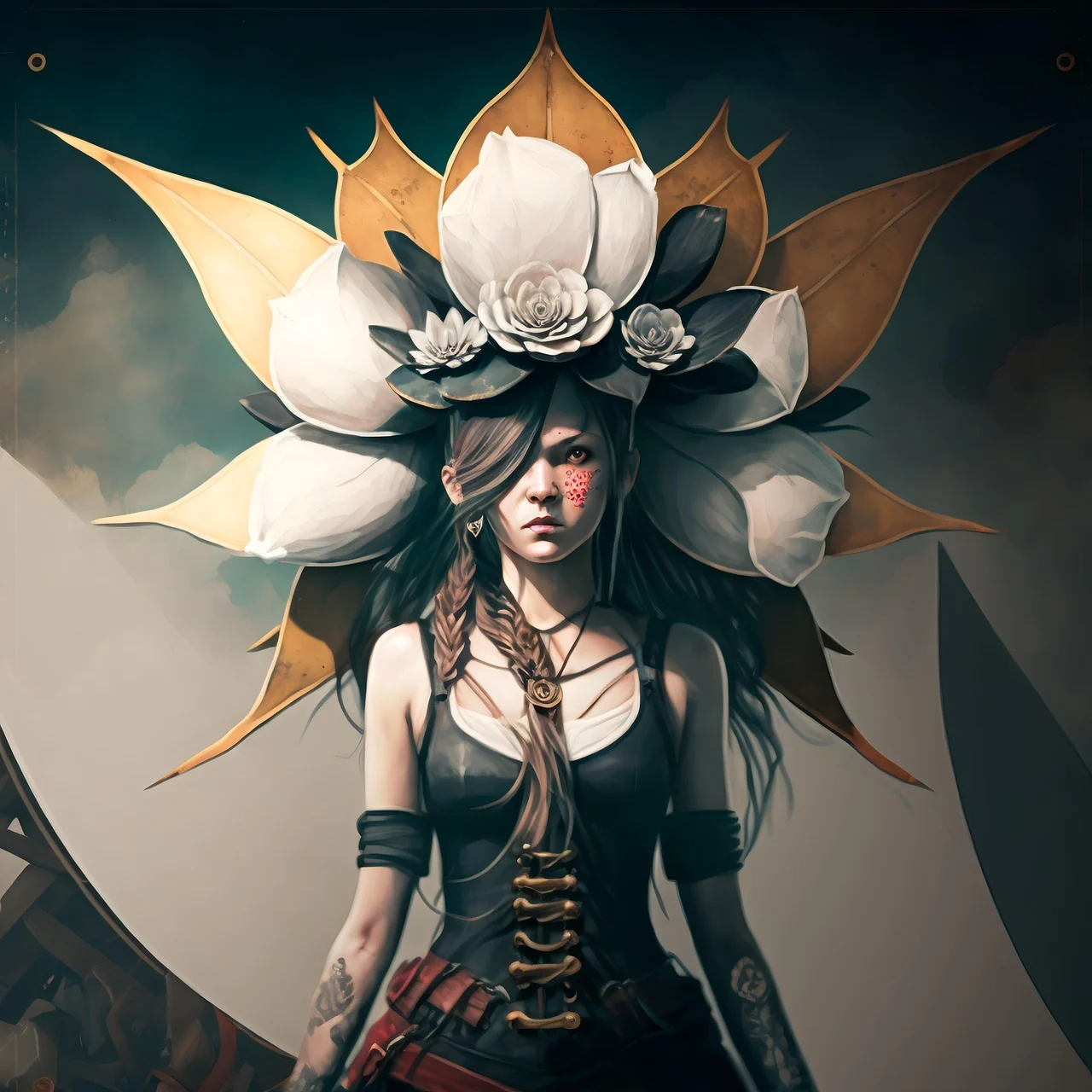
a fantasy character wearing an enormous lotus headdress. One continuous scene. Keep a clear focal subject, describe one visible action and use restrained camera movement.
 View prompt
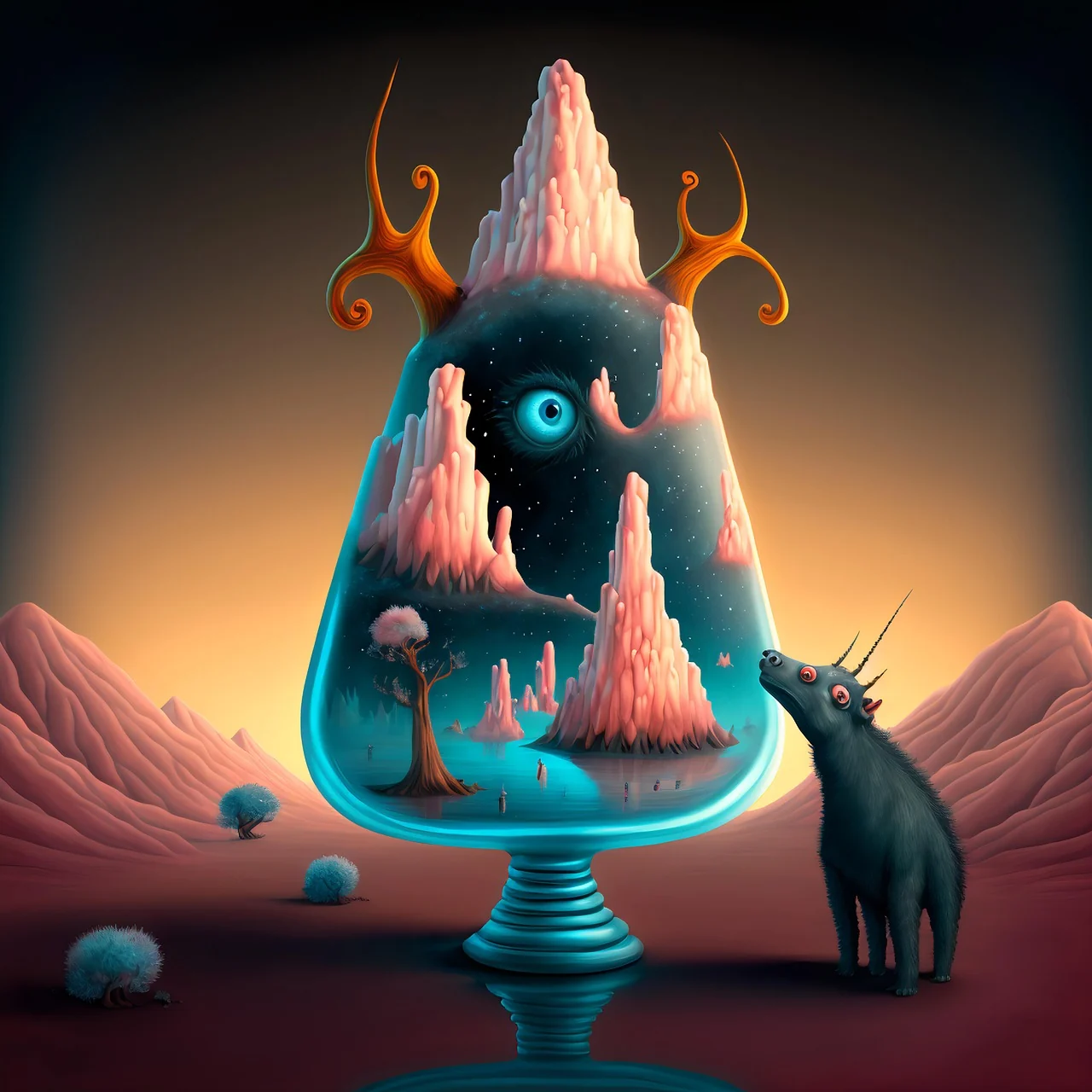
pink fantasy peaks and an eye within a glass vessel. One continuous scene. Keep a clear focal subject, describe one visible action and use restrained camera movement.
 View prompt
an illustrated breakfast of eggs, toast and beans. One continuous scene. Keep a clear focal subject, describe one visible action and use restrained camera movement.
Wan 3.0 Prime is a separate choice for video from text, image ingredients or planned first and last frames. Bring a clear scene brief and explore its interpretation while keeping the action and camera direction consistent. This workspace offers fixed durations from 2 to 30 seconds, 480P, 720P or 1080P, and optional audio. Prime has its own credit quote; check it after changing settings and judge the result against your project’s needs.
Wan 3.0 Prime is the separate Prime selection for text and image video creation. Bring the same clear scene brief into a dedicated model choice and compare the result against your purpose. Plan the composition, action and sound together, while checking the current credit quote before every submission.
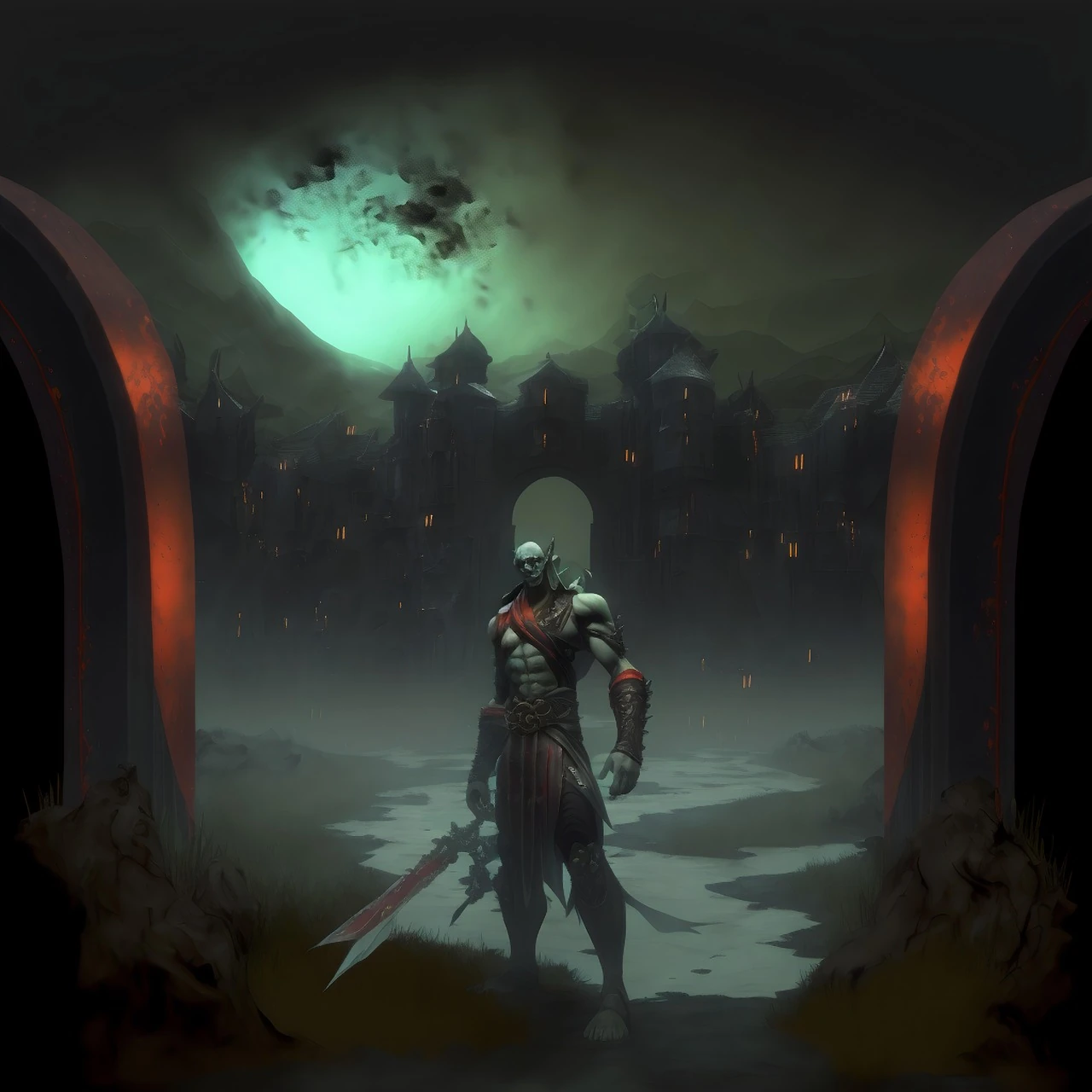
Keep Prime and standard Wan as separate creative choices. Prime has its own model identity and credit rate; switching models should be a deliberate decision. A short comparison with the same scene, frame and duration helps you judge the result for your own project.
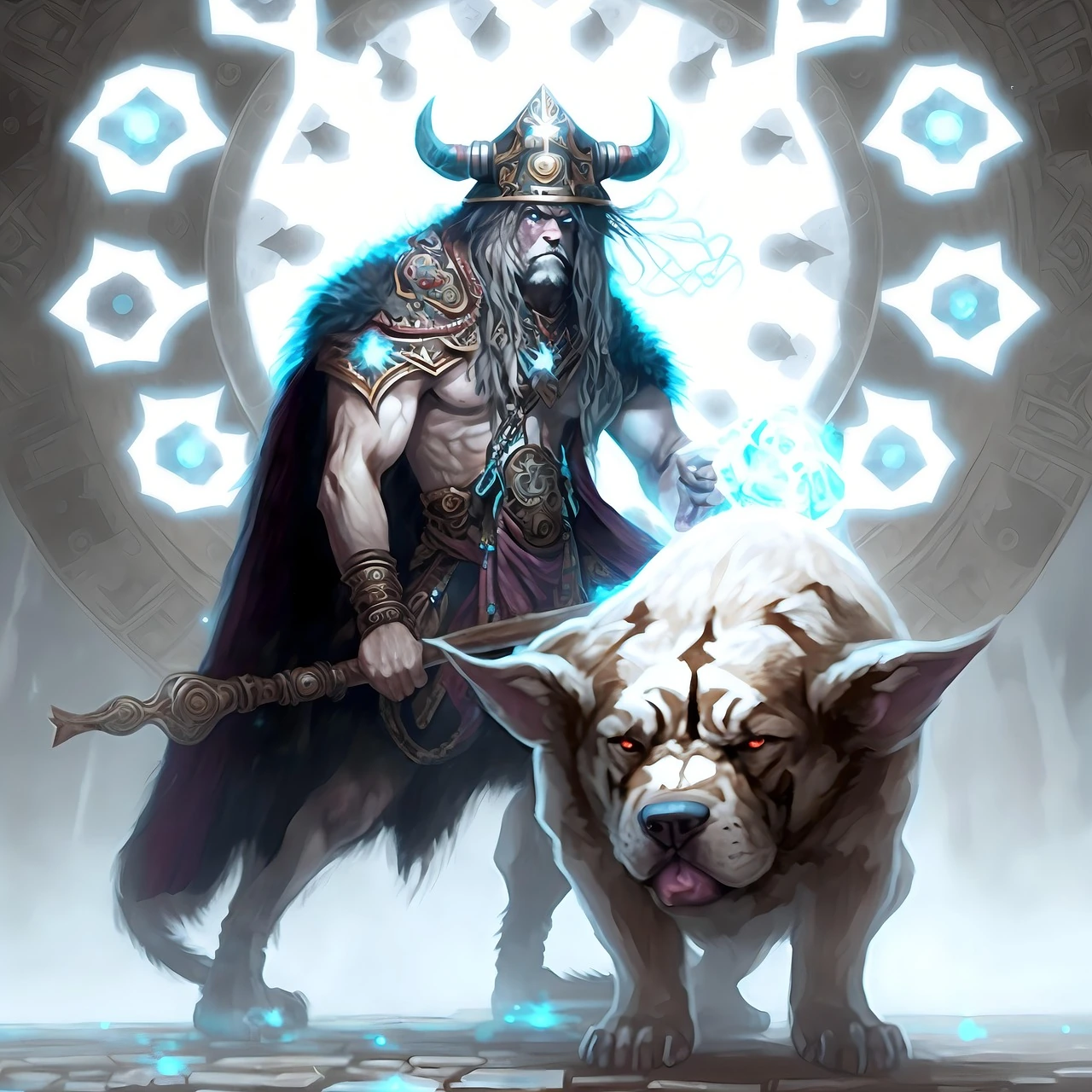
Wan 3.0 Prime offers fixed lengths from 2 to 30 seconds and 480P, 720P or 1080P in this workspace. Image input supports ingredients or first and last frames. Audio is selectable. Choose supported images and review the quote after changing resolution or duration.
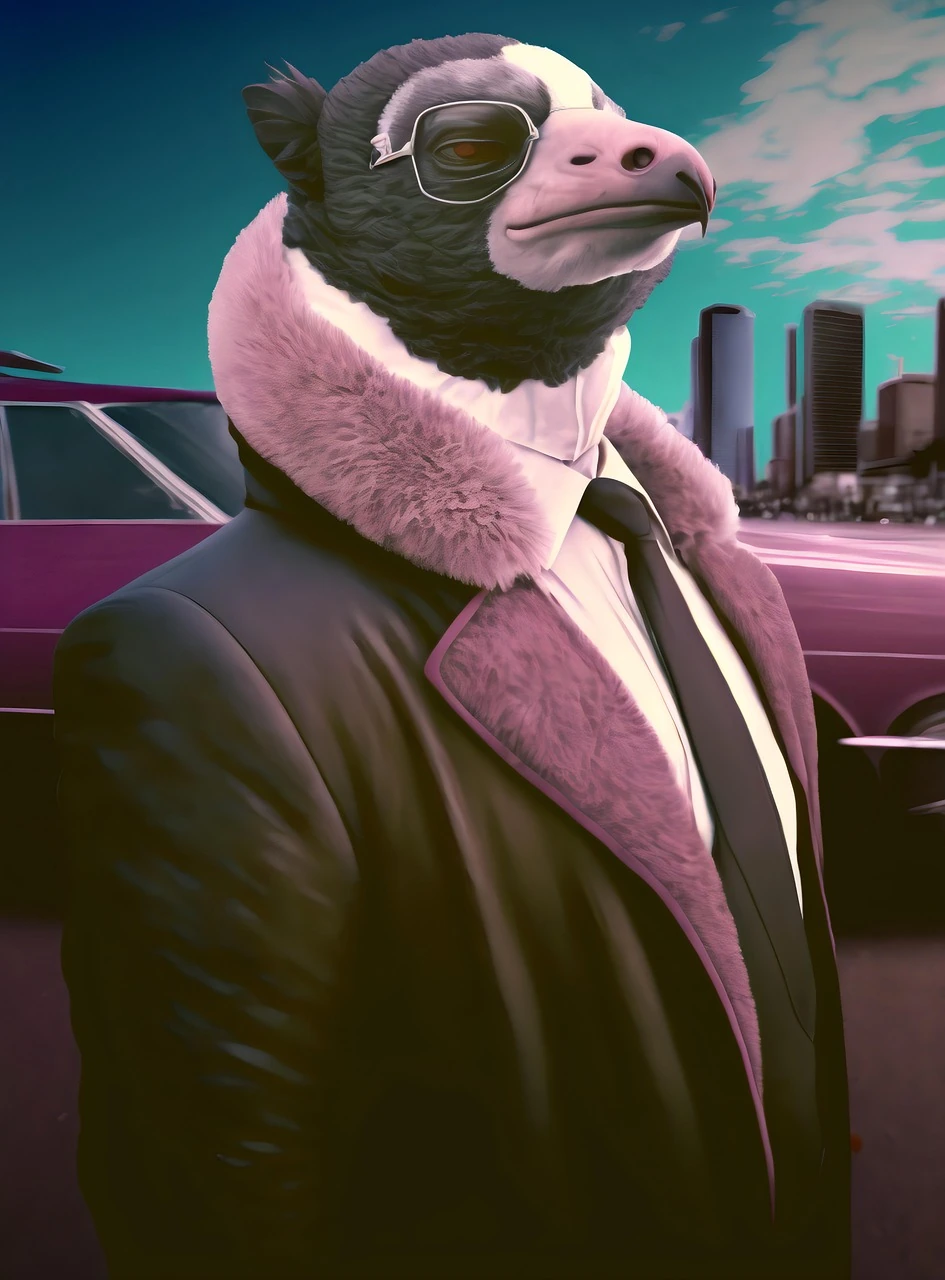
Use Prime for your next planned shot when you want to explore its separate output. A purposeful tracking movement, a character gesture or a slow product reveal creates a useful comparison. No specific completion time or quality improvement is guaranteed for every scene.
Plan one clear event, choose the matching input and review the complete clip before building the next shot.
Write down the subject, one main action and where the clip will be used. Give the viewer a clear beginning and end.
Use text for a new scene or images for a defined visual direction. Check this model’s input controls before adding references.
Choose a supported duration, resolution and available ratio. Review attachments and sound options, then read the current credit quote before submitting.
Open the task in Assets and watch to the final frame. Compare it with your brief and keep the prompt with the clip for revisions.
Plan one readable gesture: enter a doorway, turn toward a sound or stop at a window. Check clothing and identity throughout the shot.
Reveal one product with a slow camera move or a change in light. Inspect its silhouette, label and key details before choosing the clip.
Introduce a location with mist crossing a valley or traffic passing at dusk. Use one camera direction to connect the place with the next scene.
Give the clip a clear focal point and room for cropping. Assemble selected shots in your editor, then add titles, timing and sound for the channel.
Compare the input and controls you need. Each separate model has its own credit quote.
| Setting | Wan 3.0 | Wan 3.0 Prime | HappyHorse 1.1 | HappyHorse 1.1 Reference |
|---|---|---|---|---|
| Starting point | Text or image | Text or image | Text or image | Images |
| Duration | 2–30 s | 2–30 s | 3–15 s | 3–15 s |
| Resolution | 480P · 720P · 1080P | 480P · 720P · 1080P | 720P · 1080P | 720P · 1080P |
| Image references | Up to 10 images, or first / last frames | Up to 10 images, or first / last frames | One image | Up to 9 images |
| Sound control | Optional audio | Optional audio | No audio switch | No audio switch |
Prime supports a text-led scene, up to ten image ingredients, or a first frame with an optional last frame. Choose the input that communicates your intended shot most clearly.
Use image ingredients to explain appearance or place, and frames mode to plan the endpoints. Video, audio and document references are outside this image-reference workflow.
Choose a fixed length from 2 to 30 seconds and 480P, 720P or 1080P. Plan the action for the selected time rather than expecting automatic duration.
Prime has its own credit rate. Recheck its quote when changing the length or resolution, even if you previously used the same settings in standard Wan 3.0.
Select a supported frame ratio in the current mode and describe where the subject sits within the composition. Plan any camera movement around the frame you intend to publish.
Keep important details away from a crop boundary and inspect attached images. When comparing Prime with standard Wan, use matching composition and settings so the comparison has a clear purpose.
Yes. Use Prime’s audio option to decide whether to include sound in the request. Describe a specific sound or atmosphere that belongs with the visible event.
Review the returned sound and its timing alongside the action. Prepare your final dialogue, music and mix during editing rather than assuming every generated detail is ready to publish.
In frames mode, provide a first image and optionally an ending image. Describe one plausible movement between them, keeping the subject and scene direction understandable.
Compare the actual ending with your reference after completion. If the two images imply incompatible identities or compositions, revise the inputs before trying a new shot.
Begin with the event you want to see: a hand opens a box, a character turns, or a camera reveals a location. Add setting, pace and one camera instruction.
If you are comparing models, keep the brief steady first. Later, change one important instruction at a time so you can judge what improved the shot.
Standard Wan 3.0 offers similar input types and durations with a separate quote. Compare the two using the same scene and judge visible details, motion and the ending for your project.
For a single-image start within 3–15 seconds, inspect HappyHorse 1.1. For several role-based references, inspect HappyHorse 1.1 Reference. No model name guarantees a better result for every scene.
Choose images with a clear focal subject and enough detail to explain your intended appearance. Keep the reference set relevant and describe each picture’s role.
For endpoint images, check composition and identity across the pair. Use the image workspace to prepare a missing visual element before returning to Prime, then confirm the selected input mode.
Read Prime’s displayed quote after setting duration, resolution and the other available controls. Treat a model switch as a new choice and confirm the final quote before submitting.
For a pending or failed result, open the original task in Assets and read its status. Keep the task ID and relevant details for support; inspect the original record before creating a duplicate.
Evaluate the whole shot against your brief, including the final frame. Check identity, motion, product details, readable text and the sound if selected.
Confirm permissions for your material and intended use. Make the final edit, crop and sound mix, then watch the exported clip on the channel format before publishing.
Choose your starting point, describe one action and check the settings before creating.