
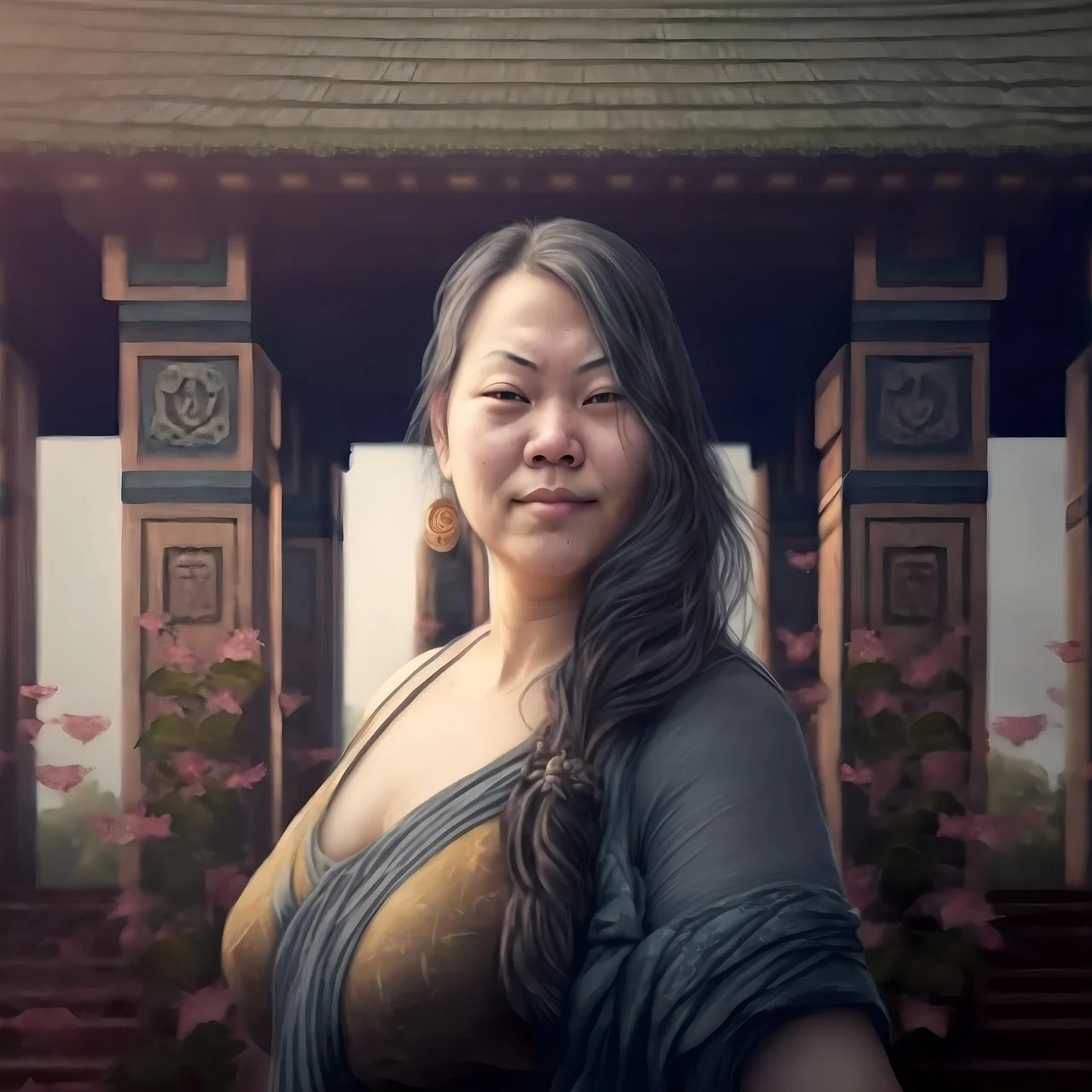
 View prompt
a figure with a long braid beside pink flowers and a temple
a figure with a long braid beside pink flowers and a temple. One continuous scene. Keep a clear focal subject, describe one visible action and use restrained camera movement.
Claim 50 free credits · Check in for up to 100 weekly
HappyHorse 1.1 Reference starts with images that help define your subject and visual direction.
Open a scene to inspect its image and prompt, then adapt the subject and movement to your own shot.
View prompta figure with a long braid beside pink flowers and a temple. One continuous scene. Keep a clear focal subject, describe one visible action and use restrained camera movement.
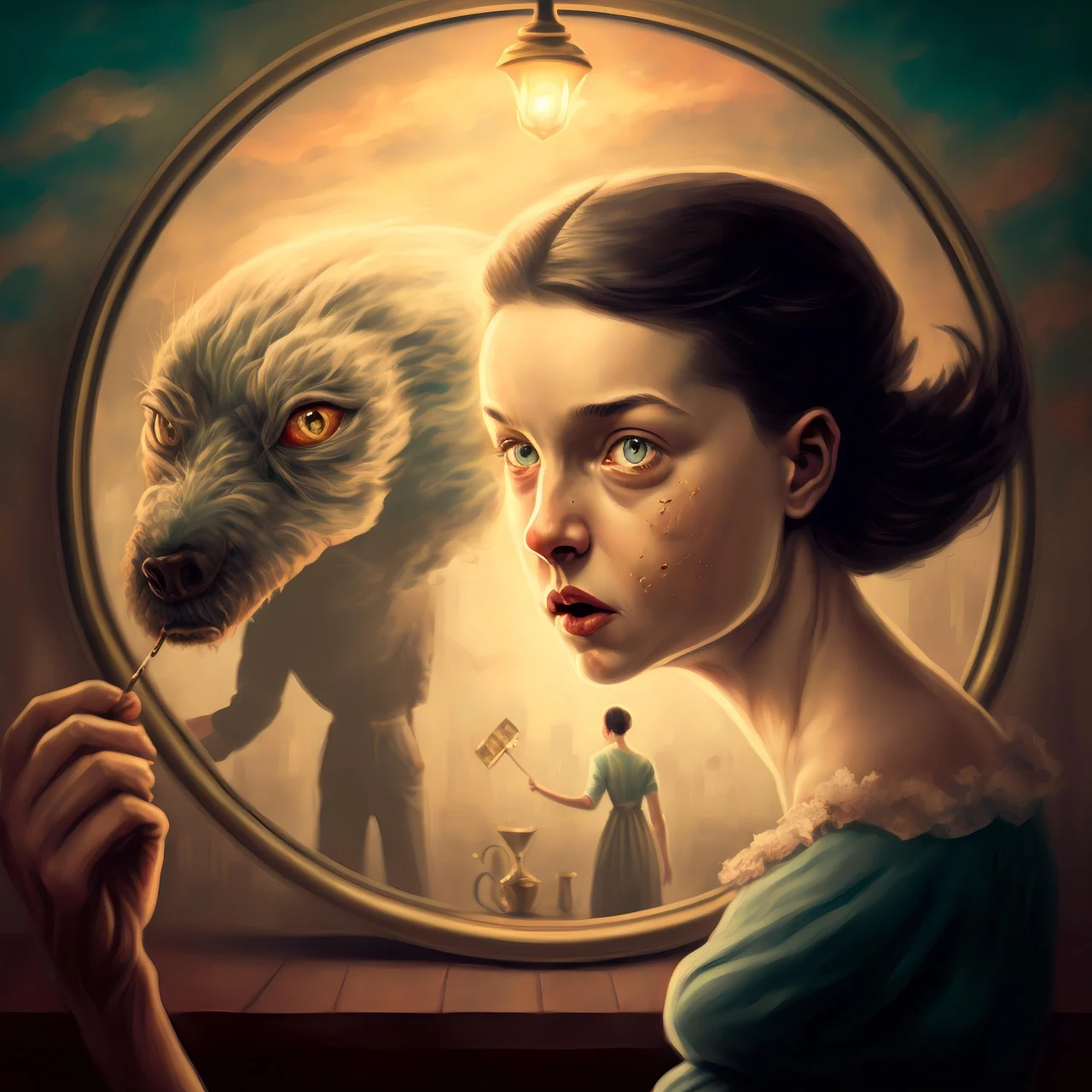 View prompt
a fantasy composition of a woman and wolf in a glowing mirror. One continuous scene. Keep a clear focal subject, describe one visible action and use restrained camera movement.
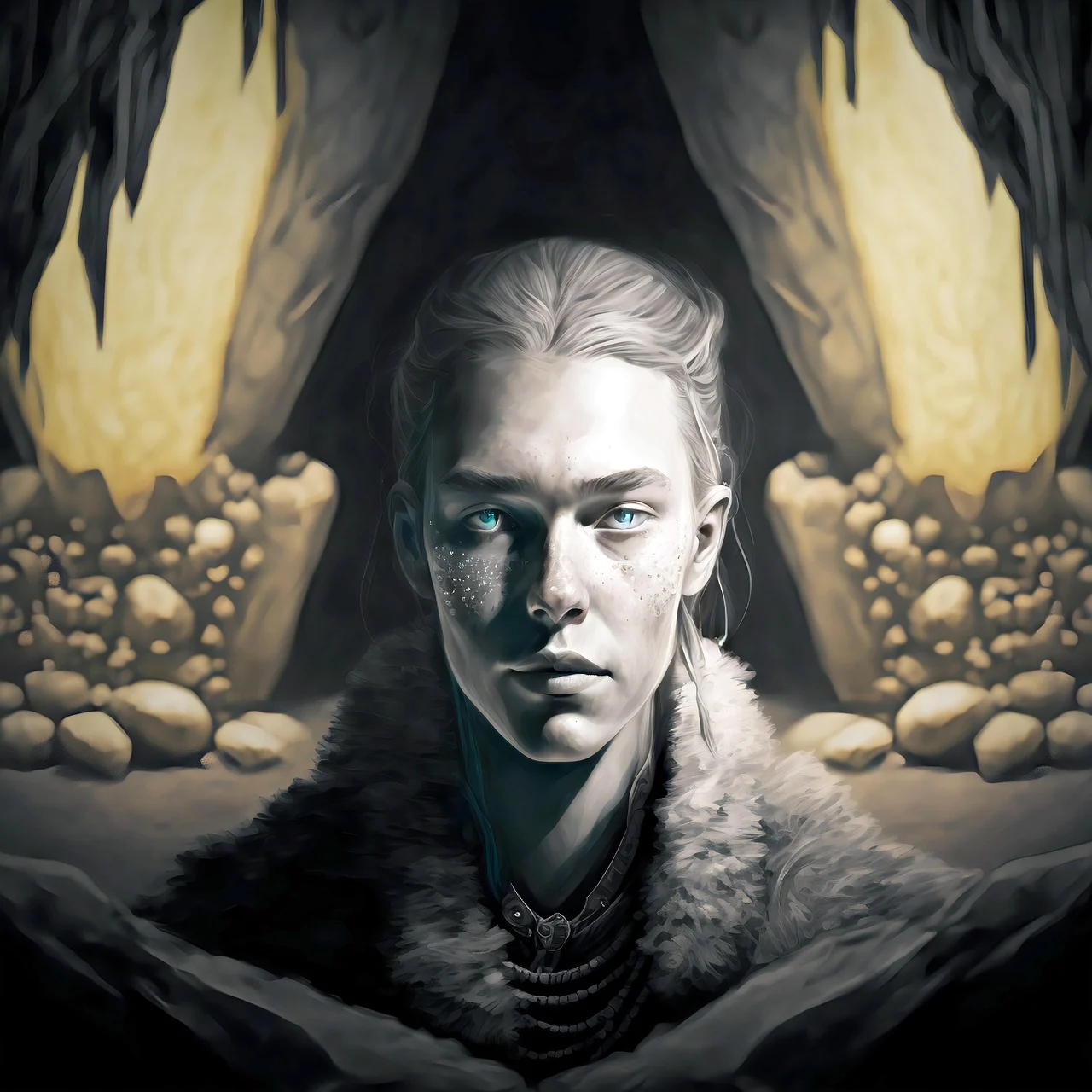 View prompt
a monochrome figure in a fur collar against a cave-like setting. One continuous scene. Keep a clear focal subject, describe one visible action and use restrained camera movement.
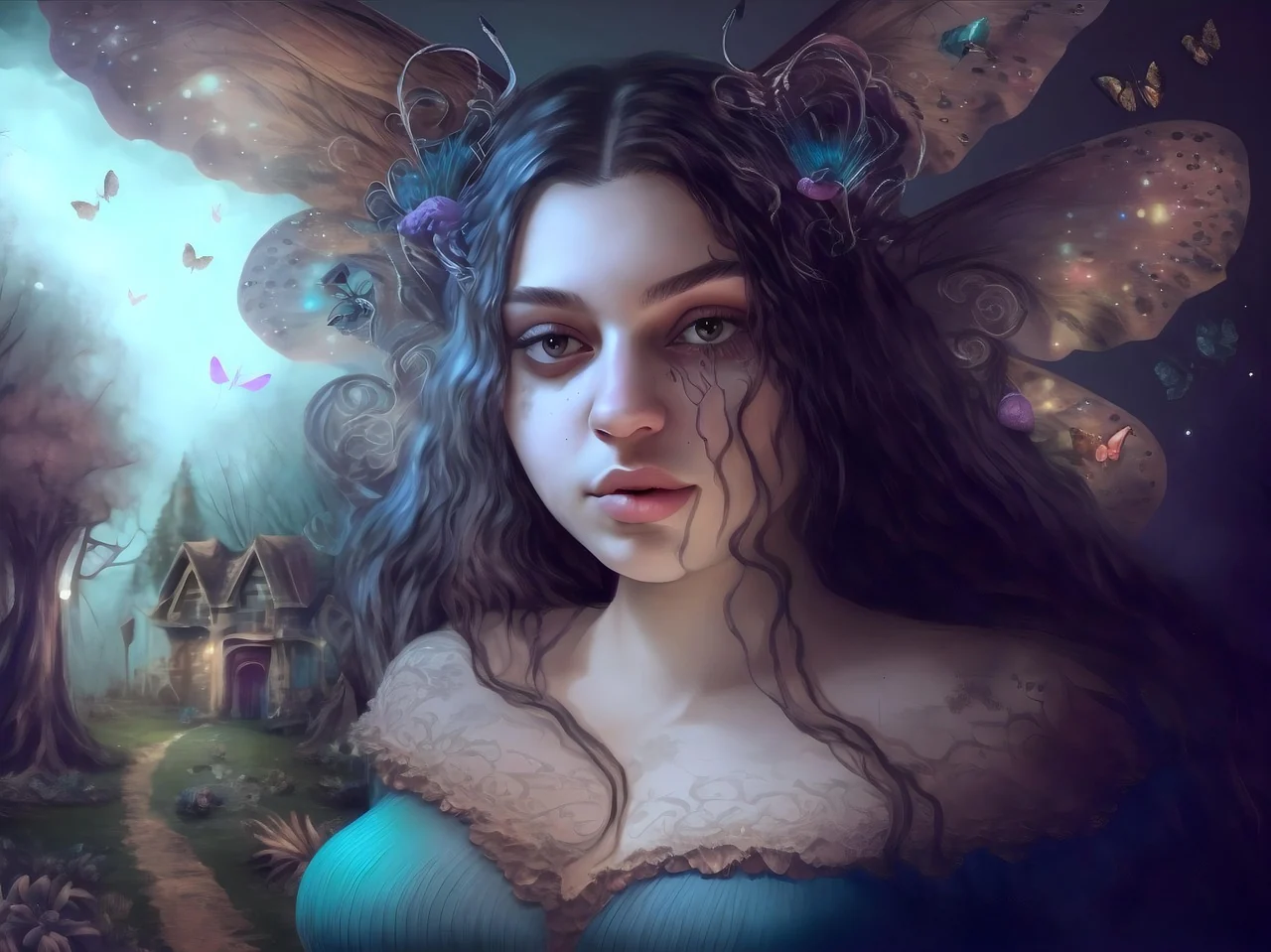 View prompt
a butterfly-winged fairy in a dreamy woodland. One continuous scene. Keep a clear focal subject, describe one visible action and use restrained camera movement.
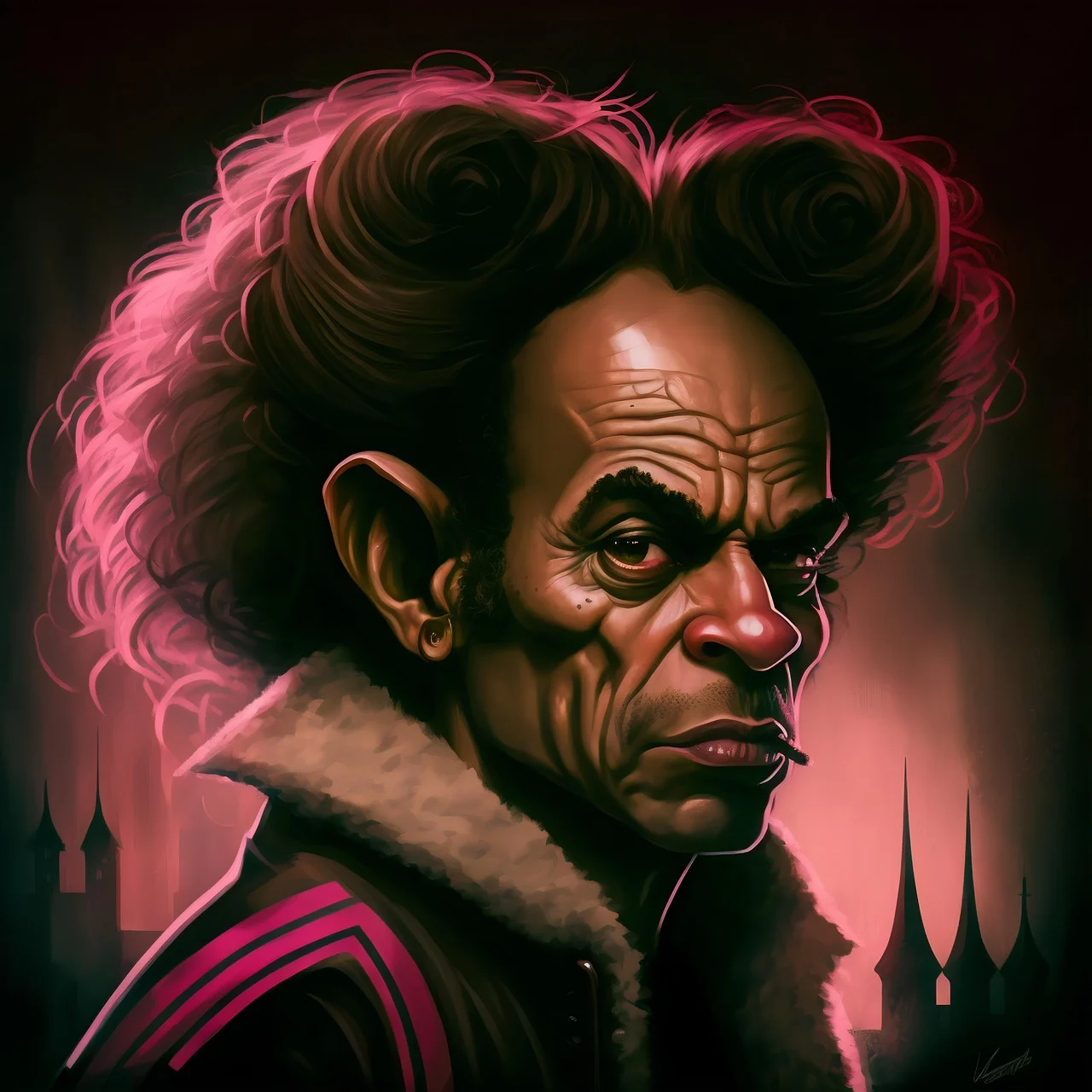 View prompt
a fantasy character with sculpted hair in pink city light. One continuous scene. Keep a clear focal subject, describe one visible action and use restrained camera movement.
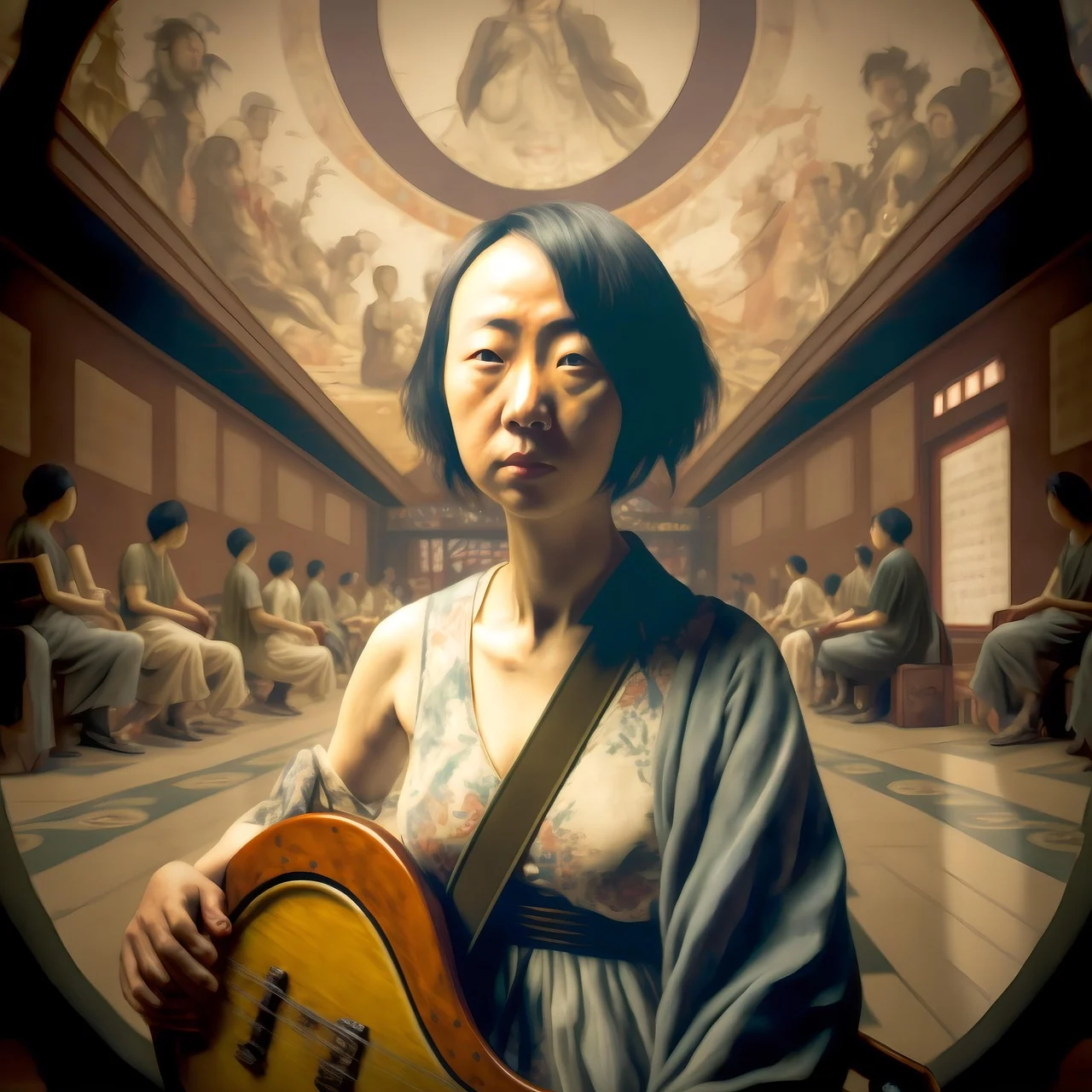 View prompt
a musician holding a stringed instrument in an ornate hall. One continuous scene. Keep a clear focal subject, describe one visible action and use restrained camera movement.
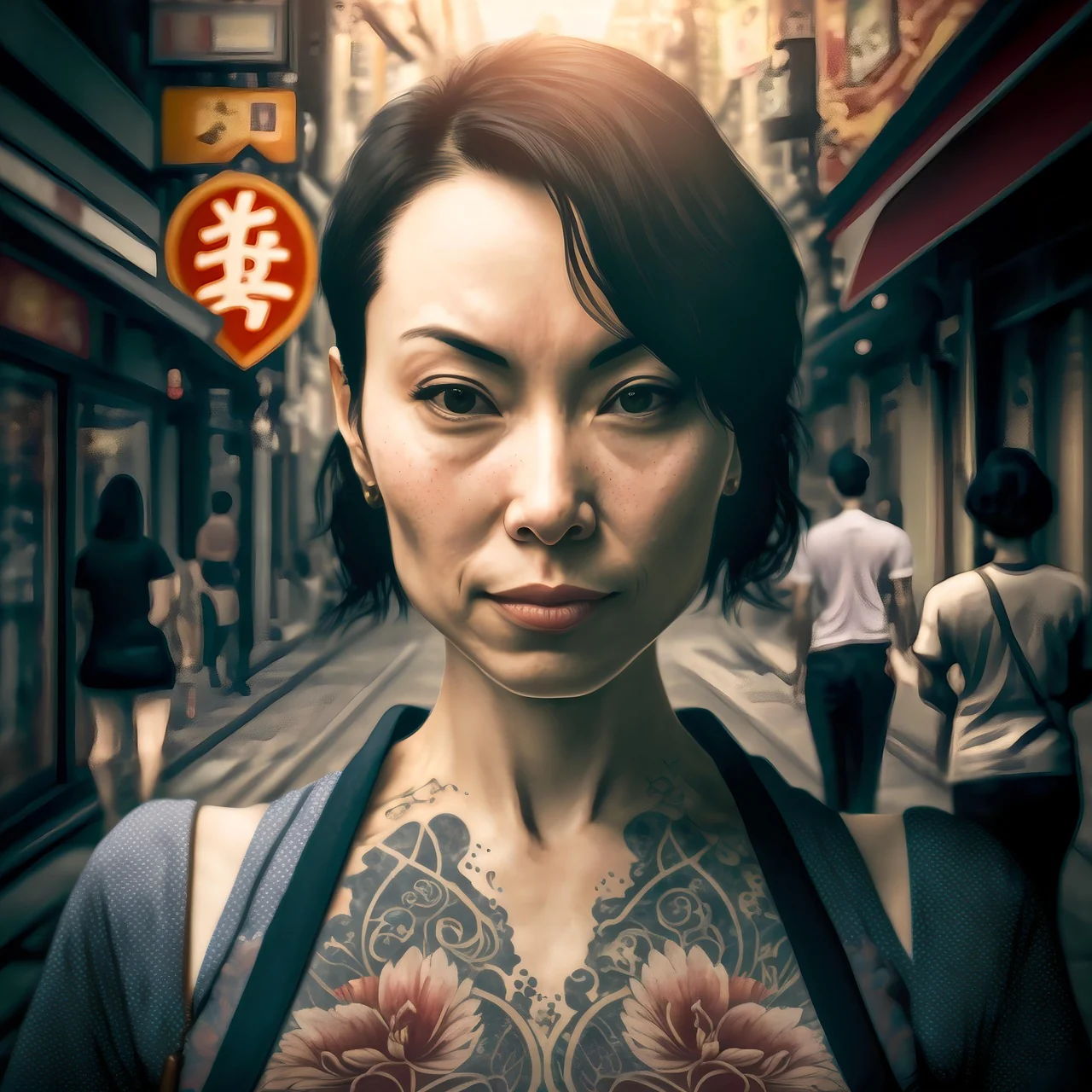 View prompt
a tattooed woman on a busy city street. One continuous scene. Keep a clear focal subject, describe one visible action and use restrained camera movement.
 View prompt
a figure facing a giant creature in a ruined city street. One continuous scene. Keep a clear focal subject, describe one visible action and use restrained camera movement.
HappyHorse 1.1 Reference brings several images into one scene brief. Give each picture a role, such as the subject, clothing or location, and describe one connected action. Add up to nine images, choose a fixed duration from 3 to 15 seconds, select 720P or 1080P and pick a supported output ratio. Start with a small, relevant set and watch the whole clip to judge how the references carry through the action.
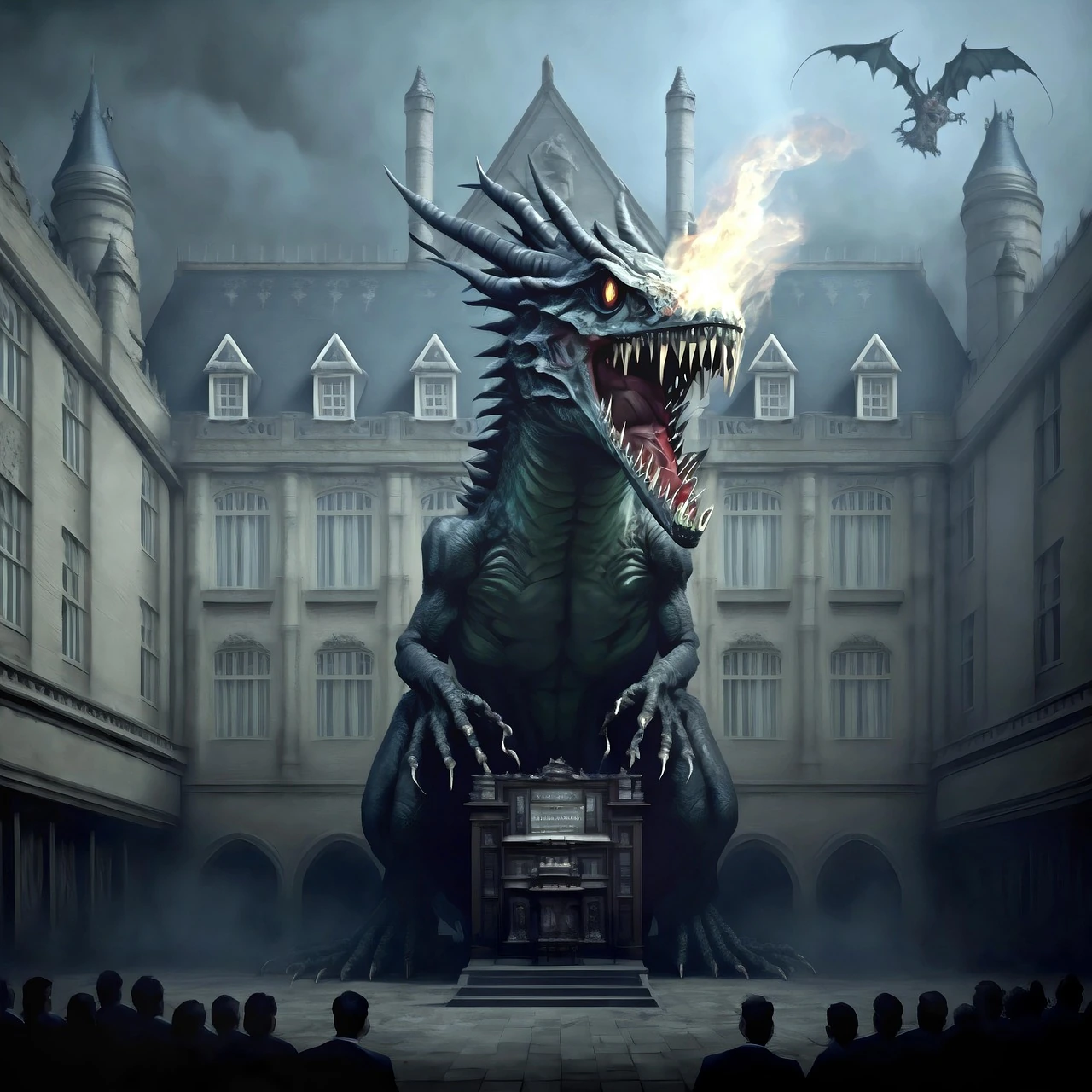
HappyHorse 1.1 Reference starts with images that help define your subject and visual direction. Gather the references that matter, explain what each contributes, and describe one coherent action. Build a character, campaign or imagined world around a clear relationship between pictures and words.

This is the reference-image workflow, separate from the single-image HappyHorse choice. Upload the pictures you need and describe the subject, setting or appearance each should guide. Avoid conflicting identities and unrelated compositions that make the intended scene difficult to interpret.
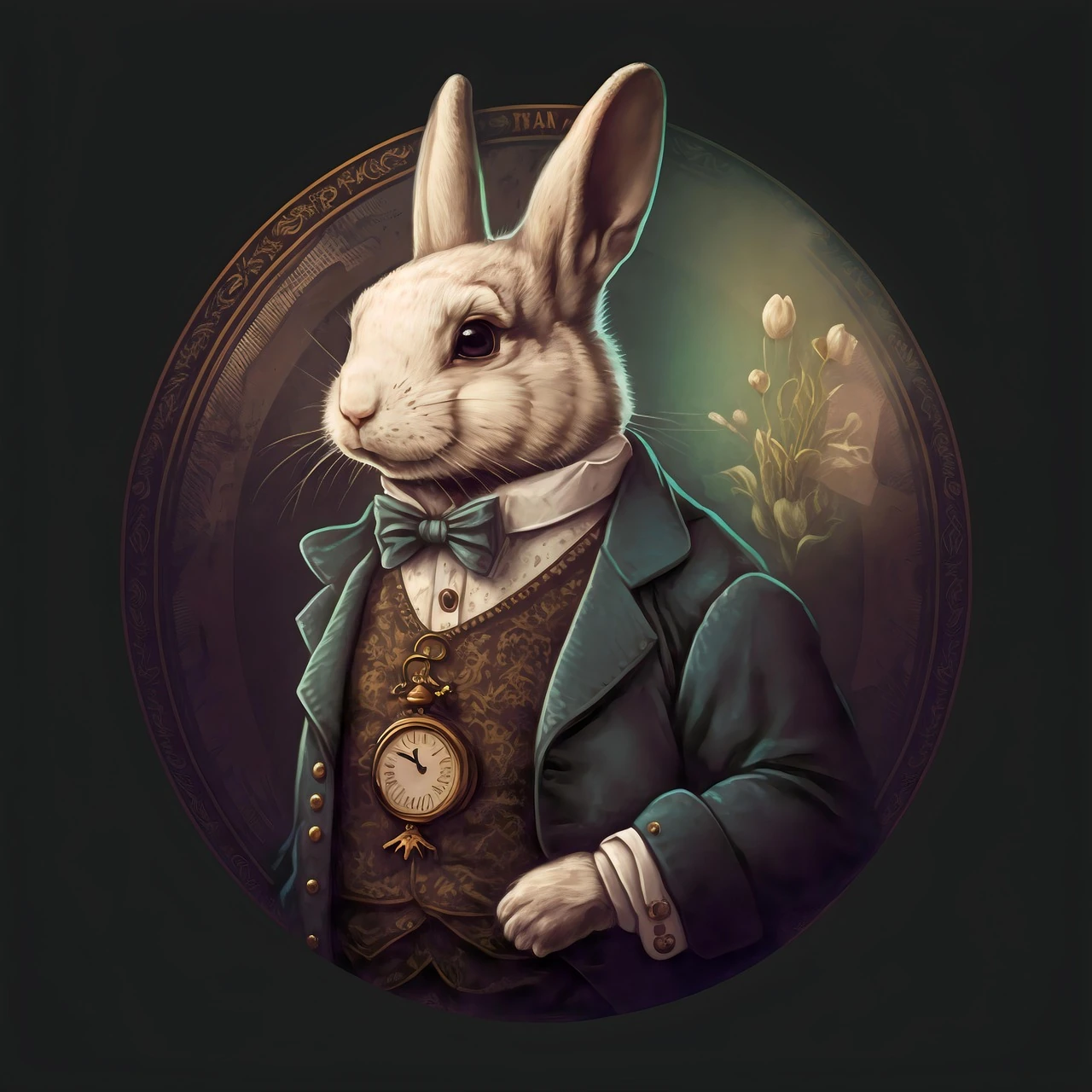
HappyHorse 1.1 Reference accepts up to nine images, with fixed lengths from 3 to 15 seconds and 720P or 1080P output here. Choose a supported frame ratio for the result. This workspace accepts image references rather than video or audio references.
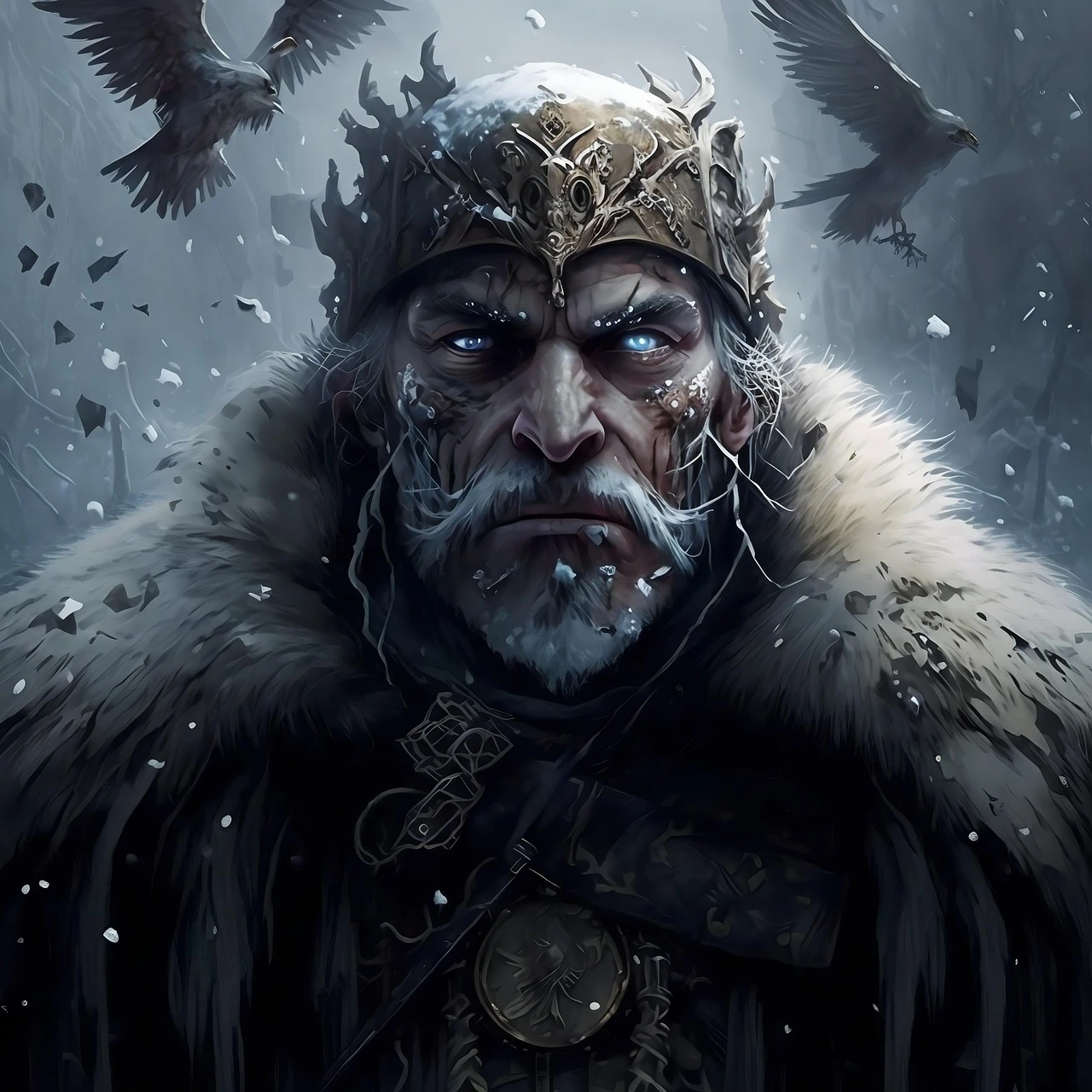
Use a small, purposeful set before adding more images. A character view, clothing detail and location can guide different parts of the same shot. Check the result for consistency throughout the clip; references guide a creative result and do not guarantee exact reproduction.
Plan one clear event, choose the matching input and review the complete clip before building the next shot.
Write down the subject, one main action and where the clip will be used. Give the viewer a clear beginning and end.
Use text for a new scene or images for a defined visual direction. Check this model’s input controls before adding references.
Choose a supported duration, resolution and available ratio. Review attachments and sound options, then read the current credit quote before submitting.
Open the task in Assets and watch to the final frame. Compare it with your brief and keep the prompt with the clip for revisions.
Plan one readable gesture: enter a doorway, turn toward a sound or stop at a window. Check clothing and identity throughout the shot.
Reveal one product with a slow camera move or a change in light. Inspect its silhouette, label and key details before choosing the clip.
Introduce a location with mist crossing a valley or traffic passing at dusk. Use one camera direction to connect the place with the next scene.
Give the clip a clear focal point and room for cropping. Assemble selected shots in your editor, then add titles, timing and sound for the channel.
Compare the input and controls you need. Each separate model has its own credit quote.
| Setting | Wan 3.0 | Wan 3.0 Prime | HappyHorse 1.1 | HappyHorse 1.1 Reference |
|---|---|---|---|---|
| Starting point | Text or image | Text or image | Text or image | Images |
| Duration | 2–30 s | 2–30 s | 3–15 s | 3–15 s |
| Resolution | 480P · 720P · 1080P | 480P · 720P · 1080P | 720P · 1080P | 720P · 1080P |
| Image references | Up to 10 images, or first / last frames | Up to 10 images, or first / last frames | One image | Up to 9 images |
| Sound control | Optional audio | Optional audio | No audio switch | No audio switch |
HappyHorse 1.1 Reference accepts up to nine images. Begin with a small set and give each image a clear role, such as the person, clothing or location.
This is an image-reference workflow. Video and audio references are outside it; remove irrelevant or conflicting pictures before describing one coherent scene.
Choose a fixed duration from 3 to 15 seconds and 720P or 1080P. Keep the brief focused enough for the action to read within the selected time.
The Reference model does not offer Wan’s 480P or 2–30-second range. If those settings are essential, inspect a Wan workflow and review its input requirements and quote.
Yes. Select a supported output ratio in the Reference workspace and plan the composition for that destination. Explain where the subject and important background elements should sit.
Unlike single-image HappyHorse, the result’s ratio is a selectable setting here. Check that your reference images communicate a compatible composition instead of relying on the first picture alone.
This Reference workflow exposes neither an audio switch nor a seed control. Use the available image, duration, resolution and ratio settings to describe the shot.
For selectable audio, consider Wan 3.0 or Prime and check how your references fit their input modes. Review any returned sound and complete the final mix during editing.
Reference images guide the scene; this model does not offer a first-and-last-frame mode. Describe each image’s role rather than treating the upload order as a sequence of required frames.
If you need a specified opening and optional ending image, inspect Wan’s frames mode. Prepare compatible endpoints and check the new quote before submitting there.
Identify which reference supplies the subject, which supplies clothing or appearance, and which supplies the location. Then describe a single action and camera movement connecting the scene.
Resolve conflicts before creating: two different identities or unrelated settings can obscure the intention. Add a reference only when it contributes something the existing set does not explain.
Use single-image HappyHorse 1.1 when one prepared composition already describes the scene and you want movement from that starting point. Its image-mode ratio follows that source image.
Use Wan or Prime when the plan depends on endpoint frames, optional audio, 480P or a different duration range. Compare supported inputs and the current quote before switching.
Choose clear, relevant pictures and identify what must remain recognisable in each. Crop away distracting content and avoid contradictory costumes or incompatible views unless you explain their purpose.
Prepare missing character or location images in the image workspace first. Review the complete set together, then use only the pictures needed to communicate one shot.
Set the Reference model, supported length, resolution and ratio, then review the current credit quote. Check all attachments before submitting the task.
If it is pending or fails, inspect its original record in Assets and read the available message. Keep the task ID and check that record before submitting a replacement.
Watch the entire clip and compare the subject, clothing and setting with their intended roles. References provide direction; check the actual result rather than assuming exact reproduction.
Inspect motion, faces, text, product detail and the final frame. Confirm permissions for the materials and finish cropping, sound and editing for the publishing channel.
Choose your starting point, describe one action and check the settings before creating.