
AI Text to Image & Visual Studio with Happy Wan
Generate studio-lit portraits, commercial product visuals and video keyframes online with Happy Wan. Control optical lighting, rich textures and framing.

Generate studio-lit portraits, commercial product visuals and video keyframes online with Happy Wan. Control optical lighting, rich textures and framing.
Describe your scene
Happy Wan Image Studio is an online AI text-to-image and reference-guided visual workspace built for studio-grade optical lighting, lifelike micro-textures, and animation-ready storyboard keyframes.
Create campaign visuals, character concepts and product scenes, ready to take into your next design or video.
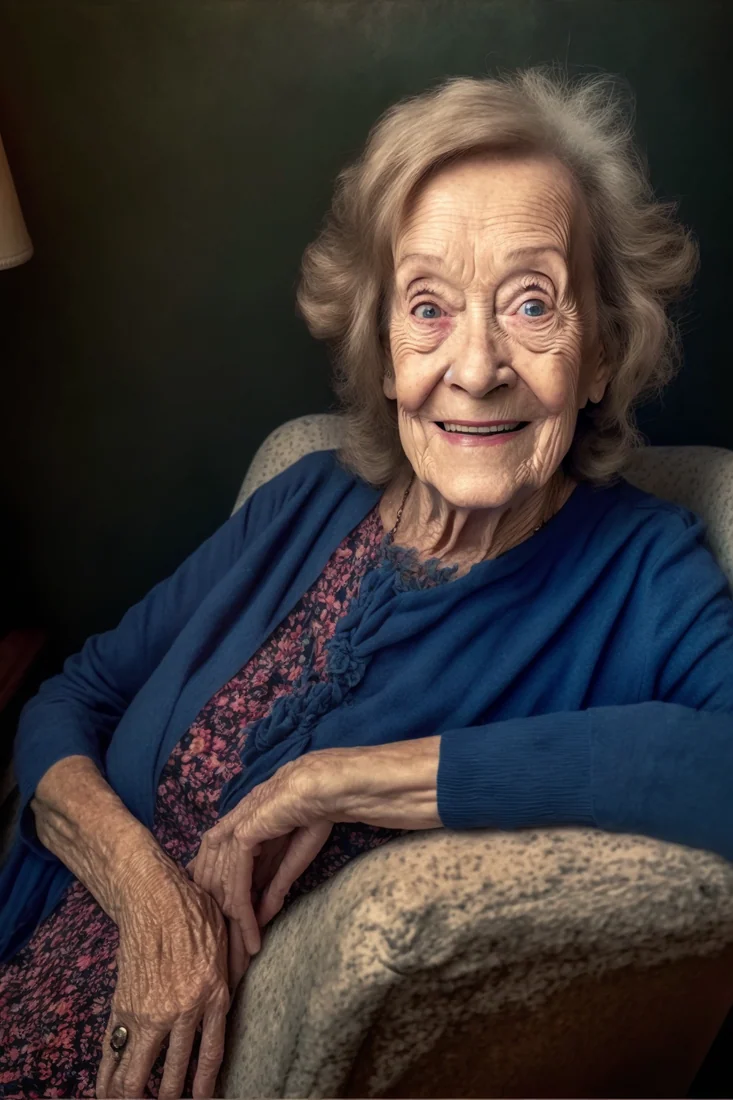
Explore campaign key visuals, lifestyle scenes and presentation images. Create different directions for a launch, then bring the chosen look into your layouts with your own brand typography and messages.
Give a script a visual starting point with location studies, character portraits and storyboard frames. Bring selected images into the video workspace when you are ready to explore movement.
Create cover images, post artwork and visual series for social channels. Develop a recognizable mood across a campaign, then finish the exact captions and layouts in your design editor.
Explore character designs, imagined environments and key moments before building final assets. Use the images to communicate atmosphere and composition with artists, animators and your team.
Illustrate a narrated story, introduce a topic or create an image for an article. Combine your Happy Wan visuals with checked information, clear diagrams and accessible on-screen text.
Develop styled product scenes, packaging ideas and seasonal campaign imagery. Use your own product references and check every visible detail before adding the exact specifications and prices.
Combine precise lighting control, reference-guided identity locking, and multi-aspect framing inside one browser-based Happy Wan studio.
Describe what belongs in the scene, where it sits and how it should feel. Happy Wan image creation starts with a readable subject and a small set of useful details. Add materials, lighting and composition after the main idea is clear.
Upload a picture to guide the next variation. Explain what Happy Wan should preserve and what should change: the product silhouette, the character clothing, the background or the color treatment. A reference is visual guidance rather than a promise of exact reproduction.
Plan expressions, clothing and background together. For a Happy Wan image portrait, describe a believable pose and a clear light source. Compare the eyes, hands and fine details before selecting a result for a public campaign.
Explore a new setting for a product or sketch the direction of an advertisement. Keep the important material, shape and framing in the prompt. Add exact brand lettering and final layout in your design editor after checking the selected image.
Choose a square, portrait or landscape frame to match the destination. The selected model exposes its supported resolution and format in the workspace. Confirm the settings and displayed credit quote before submitting a Happy Wan image task.
Use an image as a starting composition for a later video. Download your selected Happy Wan image, open video creation and upload it as a reference. Describe one motion that adds to the scene while preserving its central subject.
Carry a chosen palette, subject and atmosphere into campaign layouts, presentation slides or social artwork. Keep the exact brand text and publishing specifications under your control.
Use a selected image as a visual starting point for a supported video model. A character, product or environment can become the opening of your next moving scene.
Generate commercial-ready still visuals and video keyframes in Happy Wan in three clear steps.
Describe your subject, material texture, lighting direction, and composition—or upload reference images in the Happy Wan image workspace.
Select portrait, widescreen, or square framing and 1K–2K resolution, then verify the real-time credit cost before running.
Inspect fine details in your library, download clean files for design layout, or carry the frame into the Happy Wan video studio to animate.
A starting point for everyday ideas.
Choose from the site’s model workflows
Text and visual references by model
Model-specific creative controls
Save and revisit your work
Organize references and favorites
For product scenes, stories and campaigns.
Choose from the site’s model workflows
Text and visual references by model
Model-specific creative controls
Save and revisit your work
Organize references and favorites
More credits for larger creative projects.
Choose from the site’s model workflows
Text and visual references by model
Model-specific creative controls
Save and revisit your work
Organize references and favorites
Direct answers about optical lighting control, reference editing, resolution options, credit quotes, and still-to-video workflows.
It is the image creation workspace in Happy Wan. Use text or reference pictures to describe a still image, select the available model settings and manage the resulting task. Image creation currently uses Seedream 5.0 Flash, while the video workspace has its own video models.
Yes. Describe a subject, environment and visual direction, then select text input. You do not need a starting photograph for a Happy Wan image brief. A concise prompt with a clear main idea is a useful first draft.
Choose image input and upload a picture you are entitled to use. Explain the intended changes and the elements to retain. Check the selected model’s upload controls for supported file types, dimensions and reference limits.
Wan 3.0 · Wan 3.0 Prime · HappyHorse 1.1 · HappyHorse 1.1 Reference
Wan 3.0Wan 3.0 PrimeHappyHorse 1.1HappyHorse 1.1 ReferenceUse the resolution options shown for the selected model. Seedream 5.0 Flash exposes 1K, 1.5K and 2K options in this workspace. Choose a frame that suits your destination and inspect the final image at the size you intend to publish.
The image model provides a multi-reference input. Keep each reference relevant and explain its role, such as product shape, character appearance or background mood. The workspace enforces the current file-count and upload limits.
Describe materials, palette, light and composition. Photographic, illustrated and graphic directions benefit from specific visual language. If a Happy Wan image feels inconsistent, simplify the brief and remove instructions that pull the scene in different directions.
The workspace displays the quote for the selected model and supported settings before submission. Account rewards and plan eligibility follow the displayed rules. Free credits do not mean unlimited generation or guaranteed access to every setting.
Yes, use the separate video workspace. Download the chosen image, upload it there and describe how the subject or camera should move. The supported duration, reference mode and output settings depend on the selected video model.
Review hands, faces, fine textures and any visible lettering. Check that you have the necessary permissions for your inputs and intended use. Add exact product claims, legal copy and brand typography in your final design process.
You can begin with a plain-language description. For polished campaigns, export the selected Happy Wan image to your editor and refine typography, cropping and layout. Keep the original brief so future visuals can follow the same direction.
Explore another video workflow or prepare an image before returning to your scene.
01Wan 3.0Use text, up to ten image ingredients or a first frame with an optional last frame, with optional audio.↗Use text, up to ten image ingredients or a first frame with an optional last frame, with optional audio.
02Wan 3.0 PrimeExplore the separate Prime selection with Wan-style inputs and its own credit quote.↗Explore the separate Prime selection with Wan-style inputs and its own credit quote.
03HappyHorse 1.1Start with text or one image; image-mode proportions follow the source composition.↗Start with text or one image; image-mode proportions follow the source composition.
04HappyHorse 1.1 ReferenceGive up to nine images distinct roles and choose a supported output ratio.↗Give up to nine images distinct roles and choose a supported output ratio.
START DESIGNING FRAMES
Claim your 50 free welcome credits on first sign-in and create crisp portraits, product visuals, and storyboard keyframes in Happy Wan today.
Open workspace ↗Explore the other workspace →