
Happy Wan Release Date & Studio Shot Guide
Give a still image something to do, or write a scene from scratch. Choose Wan 3.0, Prime or HappyHorse 1.1, set the frame, and open the workspace when your shot is ready to refine.

Alibaba has yet to announce an official standalone Happy Wan release date while advancing its Wan and HappyHorse video roadmap. Start creating right now with the live models in our workspace. Apsara Conference coverage
What Is Happy Wan & Latest Release Status
Open the Happy Wan workspace to adjust the prompt, images and output settings. Save the first take before making a variation. Change the speed of a push-in while keeping the light and framing fixed. Play both shots all the way through and see which one shows the subject at the right moment.
Core AI Video Technologies & Starting Modes in Happy Wan
Build the frame from text
Start a Happy Wan text prompt with a subject, a place, and one camera move. For a landscape opener, lower the camera to the creek. Draft with Wan 3.0 or Prime to compare the same brief with different pacing.
Open the video workspaceGive a still one new action
Start from a product photo or character image you can use. Keep the important objects in the same position and write what changes after the first frame. A strip of light can cross a label or a character can turn their head. HappyHorse 1.1 supports a single starting image.
Open the video workspaceUse references for different jobs
Give each Happy Wan reference image a role: character, prop or setting. Name the role in the prompt so you can identify what carried over into the shot. Use up to nine images in HappyHorse 1.1 Reference.
Open the video workspaceFive Happy Wan Video Prompt Examples & Shot Showcase
Pick a frame and decide what should move first. Load a prompt into Happy Wan and adapt its framing, light and subject.
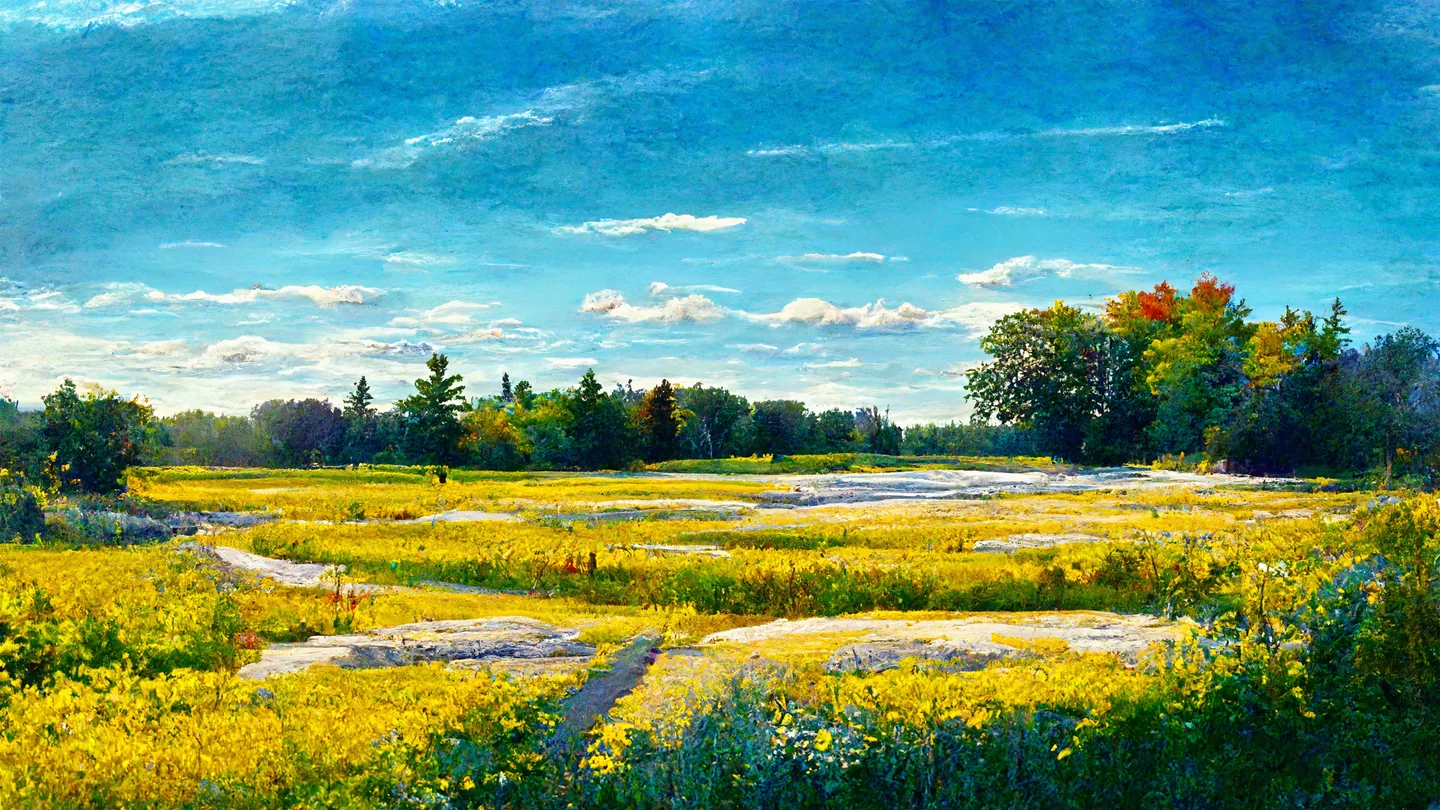
Landscape | Follow a creek into a valley
Let the water lead the shot before the hillside appears. Give the camera a consistent speed and leave enough room for the reflection to travel across the foreground.
At sunrise, track low over a mountain creek. Golden reflections slide along the foreground stones. Rise just enough at the end to reveal the meadow on the hillside.
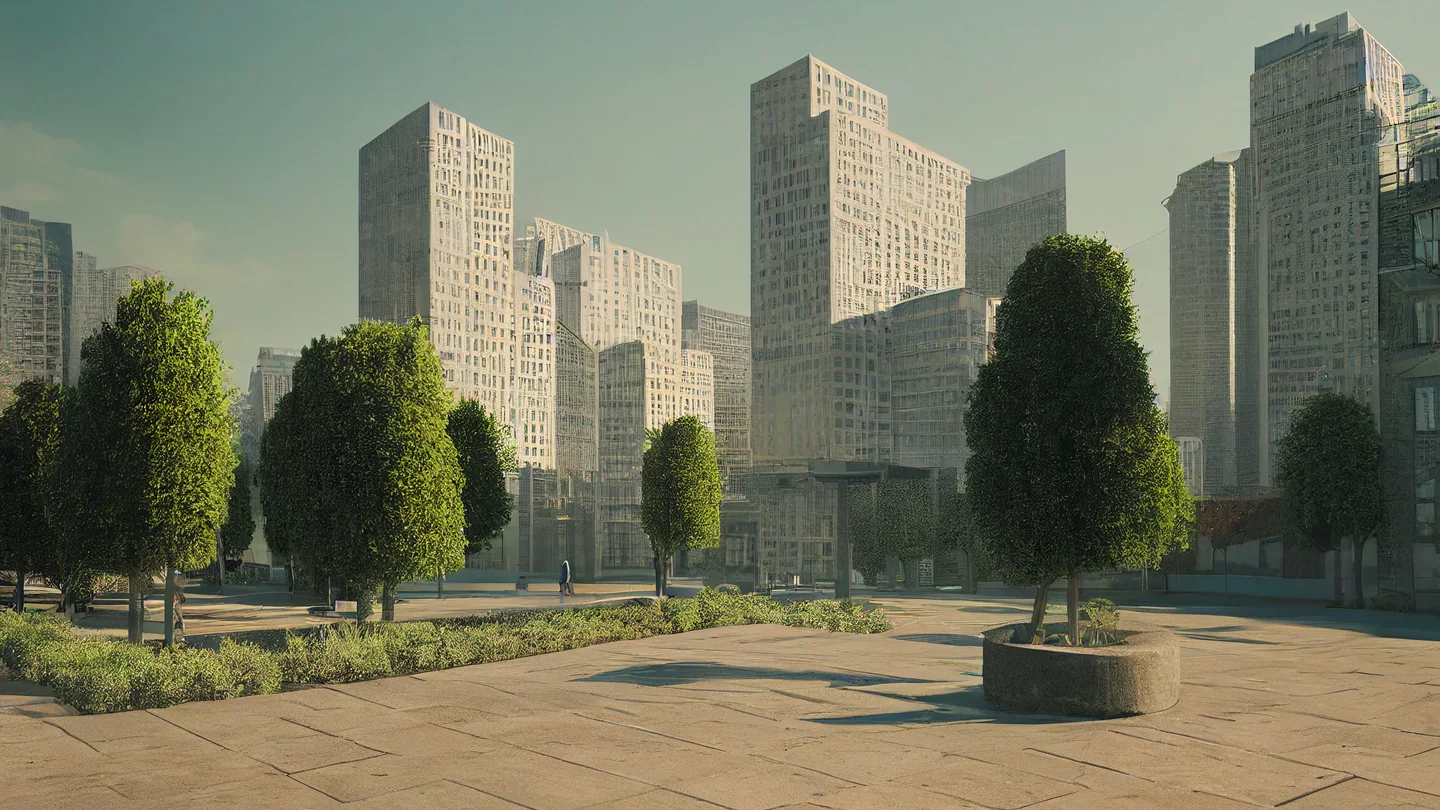
Street scene | Pass under the railway
Establish where the street sits beneath the tracks, then let one puff of steam give the camera a point to follow. Keep the route clear while the pipes and lights recede.
Move forward along a steampunk street under an elevated railway. A pipe at left releases a short puff of steam. Warm signs reflect in shallow puddles farther down the street.
Character | A small movement in the woods
Start with a clear still of the character. Let an ear or the eyes move first, then give the camera room to approach. A small action makes it easier to check whether the character kept the same appearance.
A small mouse sits on a mossy mound in the mist. Its ear twitches, then it raises its head. Push in gently from below as the mist drifts to the right.
Science fiction | Reveal a ship through mist
Give the layers different jobs. Let the clouds clear first, then show the ship’s outline over the ridge. Hold on the wide view long enough to see where it is headed.
Grey mist thins over a mountain ridge. A triangular ship crosses the valley slowly. Hold a wide frame and pan left as three soft beams shine below the ship.
Illustration | A brief movement in a woodland
Choose one visible change in the artwork. Keep the face, framing and position steady while the wings or a patch of light give the shot its movement.
A butterfly-winged fairy stands in a soft patch of light in the woods. Keep the camera still. Her wings flutter once, and leaf shadows drift across the ground.
How to Use Happy Wan Online in Three Clear Steps
Build your first Happy Wan take around one action. Choose an input mode, then fine-tune in the workspace.
Describe the shot
Name the subject, one visible action and the camera direction. When you bring a still image, describe how the action begins from its framing.
Open the workspace and check the quote
Carry the draft, model and frame into Happy Wan. Set length, resolution and references, then check the quote.
Watch it through before downloading
Sign in and submit when you are ready. Review the whole clip for the subject’s movement, any label or prop that needs to remain legible, and the timing of audio. Download the take you want to keep.
Happy Wan Video Specifications & Credit Comparison Table
| Happy Wan settings | Wan 3.0 / PrimeText or image | HappyHorse 1.1 | HappyHorse 1.1 Reference |
|---|---|---|---|
| Input | Text or image | Text or one image | Multiple image references |
| Clip length | 2–30 seconds | 3–15 seconds | 3–15 seconds |
| Resolution | 480p / 720p / 1080p | 720p / 1080p | 720p / 1080p |
| Images | Up to 10 in ingredients mode | One for image-to-video | Up to nine |
| Frame workflow | Start and end frames in image mode | Starts from the source image | Uses images as references |
| Aspect ratio | Multiple ratios and adaptive framing | Selectable for text, follows image for image input | Multiple ratios |
| Audio setting | Audio toggle in the workspace | Model output | Model output |
| Credit quote | Depends on model, duration and resolution | Shown before submission | Shown before submission |
Happy Wan previews the credits for your model at its default length and resolution. Check the quote for your final settings in the workspace. Some selections require sign-in. A short take can help you decide between two camera angles before you spend more credits on a longer version.
Commercial Value & Industry Use Cases of Happy Wan
Product pages
Show the surface first and give the product a moment to read on screen. Watch how glass reflects light, check the fabric detail and zoom in on any label before you use the clip.
Short drama
Describe a turn of the head, a hand moving to a prop or a step into the room. Set a start and end point for the camera so the viewer can follow the action.
Vertical intros
Choose a mobile frame and introduce the subject in the first second. Keep the important part of the action away from the edges where captions and interface controls may sit.
Style tests
Run the same reference image with two camera or lighting choices. Save the prompt and settings for each take so you can repeat the direction you want to keep.
Happy Wan Release Date & Studio Creation FAQ
What is the Happy Wan release date?
Alibaba has yet to publish a standalone calendar date under the model string Happy Wan, while industry coverage tracks the convergence of its Wan and HappyHorse video generation teams following the Apsara Conference roadmap preview. Creators can run live Wan 3.0 and HappyHorse 1.1 workflows in our studio right away.
Which video models are available in Happy Wan?
The workspace offers Wan 3.0, Wan 3.0 Prime, HappyHorse 1.1 and HappyHorse 1.1 Reference. Its model selector shows the actual name and the controls available for the mode you choose.
How do I use the example prompts?
Choose the button below a shot to fill the prompt at the top of the page. Edit it, choose a model and aspect ratio, then open the workspace with your draft.
Can I start with an image?
Yes. Choose an image mode and add a starting image or add it in the workspace. Use a supported reference mode when several pictures need to guide the same clip.
Can I make a video with sound?
The Wan 3.0 workflows offer an audio toggle. Describe the sound of the room, a line of dialogue or a timed effect, then listen to the result and check when the sound lands.
Does preparing a video deduct credits?
Writing the prompt, selecting settings and opening the workspace do not spend credits. The quote shown in the workspace applies when you submit the generation.
How do I choose a frame in Happy Wan?
Use a wide frame for a landscape or product demo and a vertical frame for a mobile feed. HappyHorse 1.1 follows the source aspect ratio in its single-image workflow.
Can I download videos from Happy Wan?
After your generation succeeds, review the result in the workspace and save the video. Check movement, legibility and audio before using it in the final edit.
Start Creating Cinema-Grade Videos with Happy Wan Today
Describe one action and one move of the camera. Start from your own image or adapt a prompt above to make a first take with Happy Wan.
Open the video workspace See plans and credits